You are at the office, or an airport, or someone else’s kitchen. You open the Home app to check that the front door is locked, and every accessory in the house reads No Response.
Then you get home and everything works. Instantly, perfectly, as though nothing had happened.
Test it without going anywhere
The most useful thing about this problem is that you can reproduce it on demand, standing in your own hallway.
Turn Wi-Fi off in Control Centre and let your iPhone use mobile data. Open the Home app. Your phone is now taking exactly the same route it takes from another city — out to Apple’s servers, back to your home hub, and on to the accessory. Anything that fails in this state will fail when you are genuinely away.
That turns a problem you can only observe by accident into one you can test after every change you make. Without it, you are making a change, driving to work, and finding out eight hours later whether it helped.
What remote access actually depends on
Four things have to work in sequence, and only one of them usually fails.
- Your iPhone reaches Apple’s servers.
- Apple’s servers reach your home hub — which requires the hub to be online, signed into the right account, and with an internet connection of its own.
- The hub reaches the accessory on your local network.
- The accessory answers.
At home you skip the first two entirely. That is why the same accessory can be healthy and unreachable within thirty seconds of each other, and why so many people conclude their accessories are failing “randomly”.
Read the pattern
| What you observe | What it points at |
|---|---|
| Fails away, works at home, automations also stopped | The hub is offline or unreachable |
| Fails away, works at home, automations still run | Your Apple Account, iCloud settings, or the phone |
| The home appears empty or half-empty from outside | Home data not syncing through iCloud |
| One household member can control remotely, another cannot | That person’s invitation or their own account settings |
| Broke around 10 February 2026 | The Apple Home architecture change |
| Fails at home too | Not a remote access problem at all |
Two of these rows deserve highlighting.
If your automations still run while you are away, the hub is alive. It is executing schedules, reaching accessories, doing its job. That single observation moves the investigation off the hub entirely and onto your account or your phone, which saves you from restarting a HomePod that was never the problem.
If it fails at home as well, this is not remote access. That is an ordinary accessory or network fault, and what “No Response” actually means is the right starting point.
The checks, in order
-
Confirm the hub’s status. Home app → More → Home Settings → Home Hubs & Bridges. Your active hub appears at the top of that screen. If it is not Connected, nothing else on this list matters — go to diagnosing a hub that is not responding and come back.
-
Check the account requirements. Apple’s home hub setup guidance is specific: turn on iCloud Keychain and two-factor authentication for your Apple Account. Both are genuinely required, and iCloud Keychain in particular is the one nobody thinks to check because it appears to have nothing to do with a smart home.
-
Check that Home is enabled in iCloud on your iPhone, under Settings → [your name] → iCloud. If Home is switched off there, your phone has no route to your home from outside, however healthy the hub is.
-
Confirm the hub uses the same Apple Account as your iPhone. A HomePod set up by a partner, or an Apple TV signed into a household account, will run perfectly as a speaker or a streaming box while being useless as your home hub. On an Apple TV, check Settings → Users and Accounts — Apple notes that your name needs to be selected under Default User.
-
Check that the hub has real internet, not just a network. This is the case that produces the cleanest version of the symptom: your router is up, the local network is fine, and the connection to the outside world is down. Everything works for anyone in the house and nothing works from outside. Load a web page on the Apple TV, or ask the HomePod a question that needs the internet.
-
Look for a hub that is not in your house. HomeKit elects a hub automatically, and an Apple TV that was added to this home but now lives at a parent’s flat is online, healthy, and on a network with none of your accessories. In Home Hubs & Bridges, turn off Automatic Selection and choose the device that is actually in your home.
-
Restart in the right order — the router first, then the hub. A hub that rejoins a network which is still misbehaving comes straight back with the same fault, which is why restarting the HomePod so often appears to work for an hour.
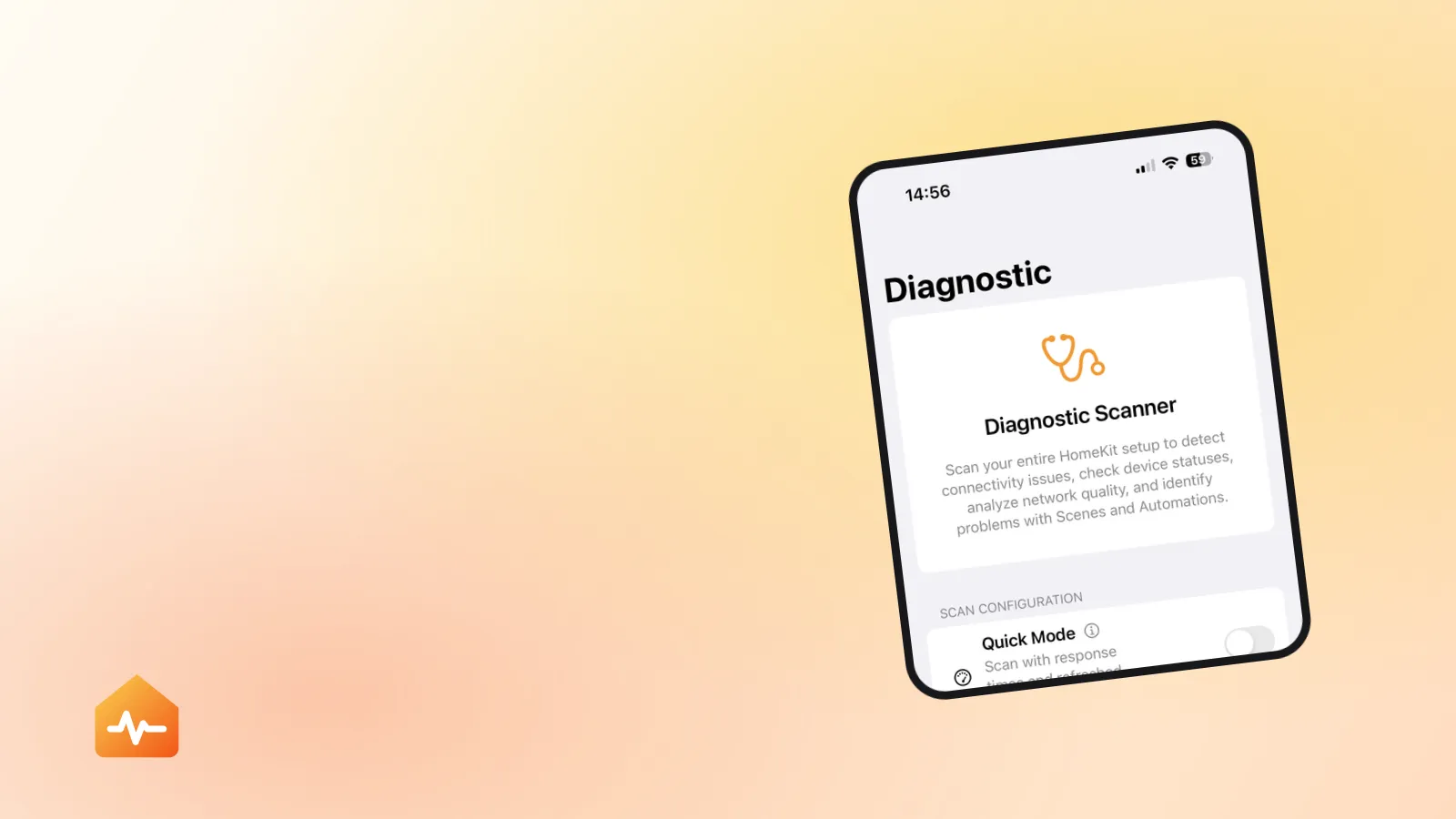
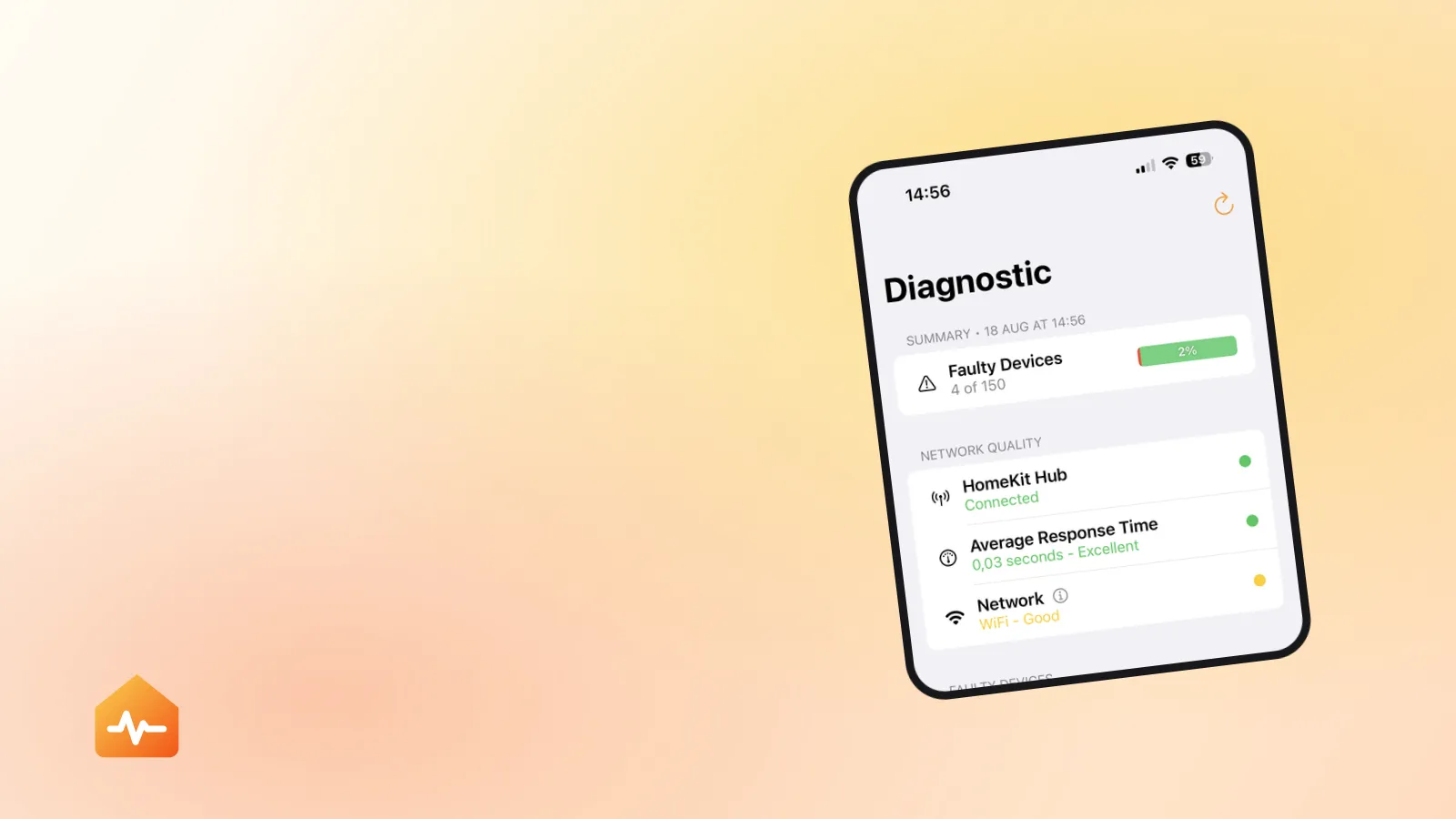
Every one of those checks lives in a different app, and each one leaves you with the same question afterwards: is it fixed? Answering that means switching to mobile data, opening the Home app, waiting for it to load, and scrolling the whole accessory list to see whether the No Response labels have gone.
If it broke in February 2026
There is a date-specific cause still generating this exact symptom.
Support for the old Apple Home architecture ended on 10 February 2026, and the current architecture no longer supports iPad as a home hub. Anyone whose only hub was an iPad lost remote access and every automation on that date, with accessories that continued to work perfectly at home.
The fix is a supported hub — a HomePod, HomePod mini, or Apple TV. There is no configuration change that restores an iPad to hub duty.
When only one person is affected
If you can control the house remotely and someone else in the household cannot, the hub is not the problem.
- Invited users need their own working setup: signed into their own Apple Account, with the invitation accepted, and Home enabled in their iCloud settings.
- Only the home owner can add hubs. Apple states this explicitly. You can see who owns the home under Home Settings.
- Check their access level. An invited user set to limited access will find some things unavailable rather than unresponsive, which reads differently once you know to look for it.
Give it a moment before judging
After you restart a hub, or change an account setting, the home configuration has to reload. Checking thirty seconds later and concluding the fix failed is the most common way people talk themselves out of a change that actually worked.
Make one change at a time, wait several minutes, and use the mobile-data test to check. Making three changes at once and then testing is how you end up unable to say which one mattered — and having to undo all of them the next time something breaks.
If it still fails
If the hub reads Connected, the account requirements are all satisfied, and remote access is still dead, the remaining possibilities are narrow: a hub with local network access but no working internet connection, or a home whose configuration has not synced. Restarting the router and then the hub addresses the first; signing out and back into iCloud on the hub addresses the second, and is worth doing last because it takes time to re-download the home.
If this started when you changed something on the network, that is a much more likely explanation than any account setting — what a new router actually breaks in HomeKit covers the settings that take remote access down while leaving the house working. And if your automations stopped at the same time and have not come back, they will need their own pass, since a hub that was offline for a while often returns with references that no longer resolve: why HomeKit automations stop working picks that up.