Every Philips Hue light in the Home app says “No Response”. All of them, at the same moment. You open the Hue app and everything works exactly as it should — full brightness, colours, scenes, no complaints.
Thirty bulbs did not fail simultaneously. One accessory did, and it is the only one Apple Home was ever really talking to.
Why thirty lights fail at the same instant
The Hue system has two halves that people naturally think of as one.
On one side, the Bridge talks to your bulbs over Zigbee, a low-power mesh that has nothing to do with your Wi-Fi. On the other, the Bridge talks to Apple Home over your network, as a single HomeKit accessory that happens to present thirty child accessories.
That structure explains the symptom exactly.
| What you see | What it means |
|---|---|
| Every Hue light unresponsive at once, Hue app fine | The Bridge’s HomeKit pairing |
| Every Hue light unresponsive, Hue app also failing | The Bridge itself, or its network connection |
| One bulb unresponsive, the rest fine | That bulb, or its Zigbee link |
| Hue lights fine, other brands failing | Not a Hue problem at all |
| Everything in the house failing, including Hue | Your hub, network, or iPhone |
If your row is the first one, the rest of this article is for you. If it is the last one, what “No Response” actually means sorts the layers before you touch anything Hue-specific.
The Bridge is not on Wi-Fi
This matters because most Hue troubleshooting advice starts with Wi-Fi, and for the Bridge that advice is wrong.
The Hue Bridge connects to your router with an Ethernet cable. It has no Wi-Fi radio. So “move it closer to the router”, “check the signal strength” and “put it on 2.4 GHz” are all describing something that does not exist in this system.
What can still go wrong on the network side is real, but different:
- The Bridge’s IP address changed, typically after a router replacement or a power cut, and something is still looking for the old one.
- The Bridge and your home hub are on different networks — a separate IoT VLAN, a guest network, or one of them on a network extender that isolates its clients.
- The Ethernet link itself failed. A switch that lost power, a cable knocked out behind furniture. Prosaic, and worth ruling out in thirty seconds by looking at the lights on the Bridge.
If all of this started immediately after you replaced your router, that is a well-defined situation with its own ordering — what a new router actually breaks in HomeKit covers it, and the Bridge is one of several things that needs attention afterwards.
What actually breaks the HomeKit pairing
Three causes account for most of these, and none of them is the bulbs.
A Bridge firmware update. Hue pushes firmware to the Bridge through the Hue app, sometimes as a mandatory update before the app will continue. Occasionally a HomeKit pairing does not survive it cleanly. The tell is timing: everything worked, you opened the Hue app, it insisted on an update, and Apple Home has been empty since.
An iOS update, or a change to your Apple Account. The HomeKit pairing is held on your side as well as the Bridge’s, and large iOS or Home app architecture changes have historically been where these links get lost.
The Bridge was re-added to a different Hue account or moved house. Any operation that re-establishes the Bridge’s identity on the Hue side can leave the HomeKit pairing pointing at something that no longer matches.
In all three cases the bulbs are untouched. Zigbee never noticed, which is why the Hue app is serenely unaware that anything is wrong.
Confirming it is the Bridge before you change anything
Worth doing properly, because the fixes below are cheap for a Bridge problem and destructive if you have misdiagnosed a whole-home problem as a Hue one.
What you want to establish is whether the failing accessories are exactly the ones behind the Bridge, or whether other things are failing too and you noticed the Hue lights first because there are thirty of them.
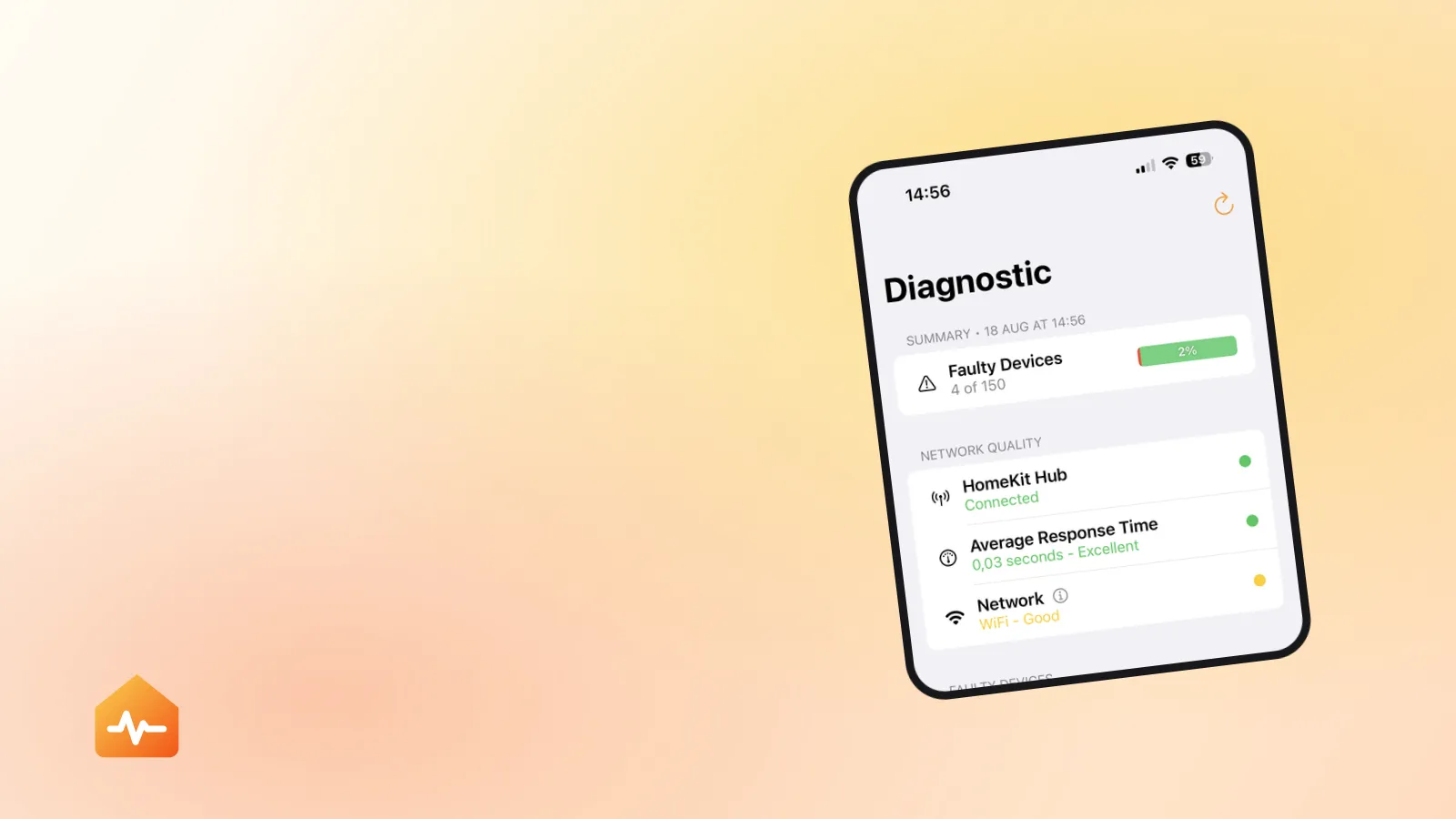
By hand, that means opening the Home app and checking every non-Hue accessory individually — the Eve plug in the study, the thermostat, the contact sensors, the lock — while the Home app shows you one accessory at a time and gives you no way to see them grouped by what they sit behind. In a home with forty accessories, that is a genuinely slow way to answer a yes-or-no question.
Fixing it, cheapest first
The order matters here more than usual, because the last step costs you your Apple Home scenes and the step before it costs you nothing.
-
Look at the Bridge. Three lights should be lit. If the network light is out, this is a cable or switch problem and nothing else you do will help.
-
Restart your home hubs. Unplug your HomePod, HomePod mini or Apple TV, then plug them back in. Apple lists this for accessories from a single manufacturer failing, and it is free.
-
Restart the Bridge by unplugging its power for about ten seconds. This is a power cycle, not a reset — nothing is erased, and the reset button is not involved.
-
Update the Bridge firmware in the Hue app, if an update is pending. If a half-applied update is what broke the pairing, completing it is more likely to help than anything else on this list.
-
Re-pair the Bridge to Apple Home from the Hue app. In the Hue app’s settings there is a HomeKit and Siri section that offers to pair the Bridge; you will need the HomeKit setup code printed on the underside of the Bridge. The exact wording of that screen has changed across Hue app versions, but it is always in Settings and always asks for that code.
-
Only if that fails, remove the Bridge from the Home app and add it back by scanning the same code. This is the step with a real cost — see the warning below — so record what your scenes contain first.
Why not to factory-reset the Bridge
This is the advice that circulates most and helps least.
Philips are explicit about what a factory reset does: the Bridge returns to factory condition as though it were new, and all your personal configuration, linked lights and automations are erased. You then re-add every bulb, rebuild every Hue room, and recreate every Hue scene and routine — after which you still have to pair it to Apple Home, which is the thing you were trying to do in the first place.
A HomeKit pairing problem is not a reason to do that. Keep the reset for a Bridge you are selling, giving away, or moving to a genuinely fresh start on a new network.
When it really is one bulb
Occasionally the diagnosis goes the other way: everything else is fine and a single Hue light is unresponsive in both the Hue app and Apple Home.
That is a Zigbee problem, not a HomeKit one. The usual causes are distance from the Bridge or from the nearest mains-powered bulb acting as a repeater, a bulb switched off at the wall — a Hue bulb with no power is not a smart bulb, it is a bulb — or a bulb that has dropped out of the Zigbee mesh and needs re-adding in the Hue app.
The distinction to hold onto is that anything failing in the Hue app is a Hue problem to be solved in the Hue app, and only things that work there but not in Apple Home are HomeKit problems. Accessories that work in their own app but not in Apple Home generalises that test to every bridged brand.
If the pairing keeps breaking
A Bridge that loses HomeKit every few weeks is telling you something structural rather than needing the same fix repeatedly.
Check whether it and your home hub are genuinely on the same network — an IoT VLAN or an isolated guest network will produce exactly this pattern of a pairing that works when set up next to the router and degrades afterwards. Give the Bridge a reserved IP address in your router so it stops moving. And if you are running a large Hue installation, watch for the separate problem underneath: a Bridge serving a great many bulbs gets slower before it gets unreliable, and measuring where HomeKit delay comes from will show you whether you are near that line.
If the Bridge is fine and it is your home hub that keeps dropping instead, the symptom looks similar from the Home app but has a different cause entirely — a home hub that is not responding is the guide for that one.