The bulb responds instantly in the Hue app. You can dim it, change its colour, run one of its own scenes. Then you switch to the Home app and it reads No Response.
It is tempting to read that as an Apple bug. It is almost never a bug — it is two apps taking two different routes to the same bulb, and only one of those routes is broken.
Two apps, two completely different routes
When you tap a light in the Home app while standing in your kitchen, nothing leaves your house. Your iPhone discovers the accessory on the local network using multicast DNS, opens a connection to it, and sends the command. Apple’s design is deliberately local.
A typical manufacturer app does something quite different. It sends your command to the company’s servers, and the accessory — which holds an outbound connection to those same servers — picks it up. The command travels out of your house and back in.
That difference explains the whole symptom. An accessory that can open an outbound connection to the internet but cannot be reached from another device on your own network will work flawlessly in one app and be invisible to the other.
Not every manufacturer app is cloud-only. Some talk to a local bridge when your phone is on the same network and fall back to the cloud when you are out. That is exactly why the mobile-data test is worth running rather than assuming.
Which case are you in?
| What you observe | What it points at |
|---|---|
| Vendor app works on Wi-Fi and on mobile data | Cloud path healthy, local path broken — the rest of this guide |
| Vendor app works on Wi-Fi, fails on mobile data | Local path works for that app — the fault is specific to HomeKit pairing |
| Vendor app fails too | Not this problem: the accessory or its own connection is down |
| Only fails when you are away from home | The home hub, not the accessory |
| Every accessory of one brand behaves this way | That brand’s bridge and its link to HomeKit |
| Started right after a firmware update | The HomeKit pairing or the compatibility layer |
If the accessory fails in its own app as well, this is a simpler and more ordinary problem — what “No Response” actually means covers it from the top.
What breaks in the gap
These are the causes, roughly in the order they turn out to be responsible.
Multicast and mDNS filtering
HomeKit finds accessories using multicast DNS, the same mechanism behind AirPlay and printer discovery. Routers filter or throttle multicast under a variety of names — IGMP snooping, multicast rate limiting, “optimise multicast traffic”, Bonjour or mDNS gateway settings.
With multicast suppressed, the accessory is sitting on your network in perfect health and your iPhone cannot find it. Its cloud connection is unaffected, so its own app carries on as though nothing has happened.
Client isolation
Also sold as AP isolation, guest isolation or “block LAN access”. It prevents devices on the network from talking to each other. Internet access for each device is untouched, which is why it produces this exact symptom: every cloud-based app works, every local protocol dies.
Separate networks that look like one network
This is the cause that catches technically-minded people, because it is the result of doing something sensible.
- A guest network. Your iPhone silently joined it, or the accessory did during setup.
- A dedicated IoT SSID. Common advice for security, and fatal to HomeKit unless you deliberately allow traffic between the segments.
- A VLAN with no route between it and the main network. Same effect, more thoroughly.
HomeKit needs your iPhone, your home hub and your accessories to be able to reach each other directly. Any arrangement that separates them stops HomeKit while leaving every accessory’s internet connection — and therefore its own app — perfectly intact.
A VPN on your iPhone
Apple’s troubleshooting guidance for accessories that are not responding explicitly names VPN and third-party security software. A VPN profile can capture or reroute the local traffic HomeKit relies on, so accessories vanish from the Home app while everything internet-based on the same phone works normally.
This one is quick to rule out: turn the VPN off, force-quit the Home app, reopen it.
The HomeKit pairing itself
An accessory holds a HomeKit pairing separately from its account with the manufacturer. The two are independent, and one can break while the other is fine.
The usual way this happens is a reset performed from the manufacturer’s app, or a firmware update that resets the accessory’s pairing state. The vendor account survives, so the vendor app keeps working, while HomeKit’s keys no longer match anything. The accessory then sits in the Home app looking normal and answering nothing.
Bridge-level exposure
For anything behind a Hue Bridge, an Aqara hub or a Lutron bridge, there are two separate links: accessory-to-bridge, and bridge-to-HomeKit. The manufacturer’s app only exercises the first.
So a bridge that has lost its HomeKit pairing — or that has accessories added since the pairing which were never exposed to HomeKit — gives you a set of lights that work beautifully in their own app and are absent or unresponsive in Apple Home. Check the bridge’s own settings for which accessories it publishes to HomeKit before you touch any individual bulb. The Philips Hue version of this is common enough to have its own guide — every Hue light unresponsive while the Hue app works.
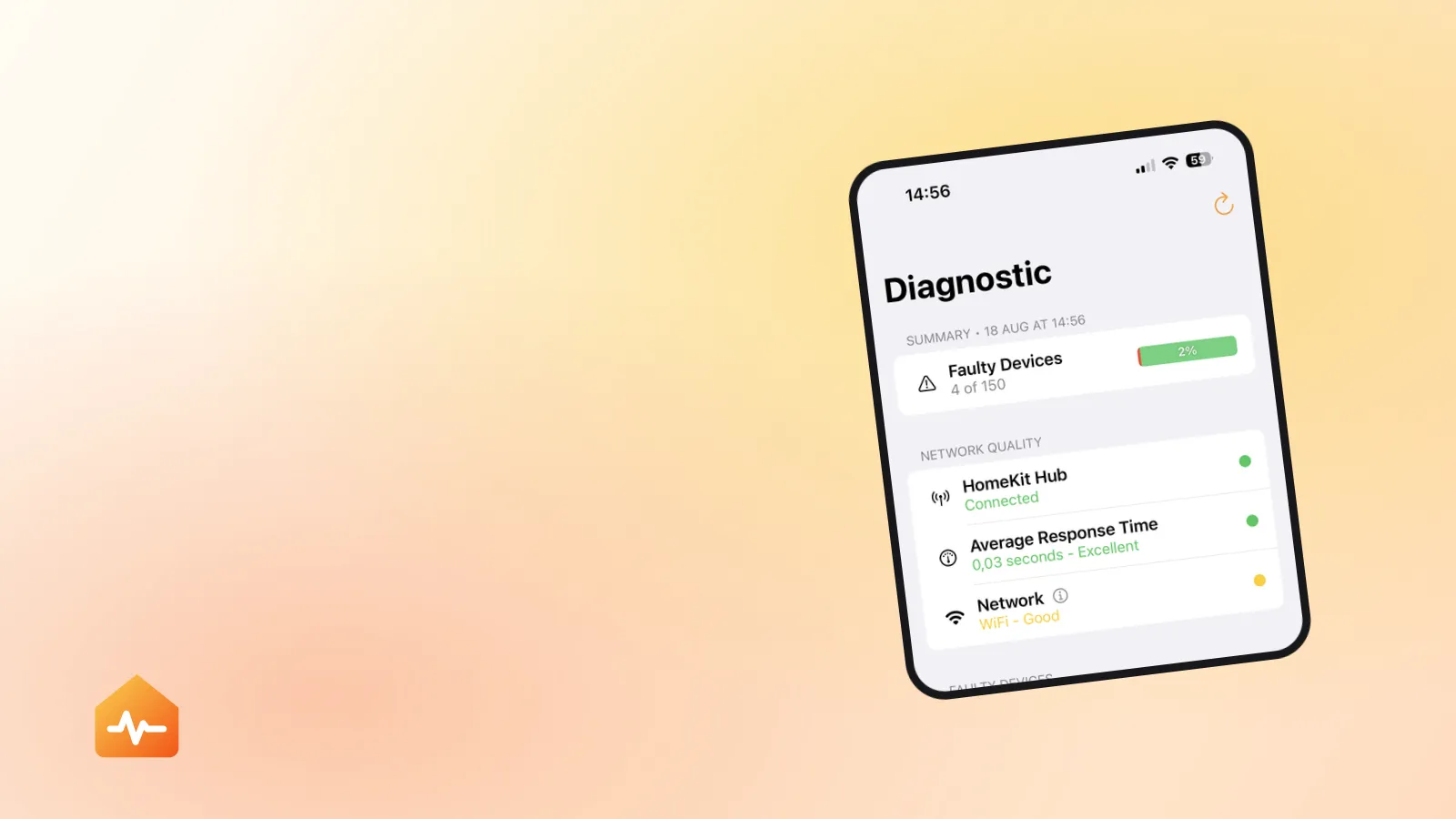
Working out which accessories are affected, and whether they share a bridge, is the part that eats the time. Twenty bulbs across three rooms means twenty checks in the Home app and twenty more in the manufacturer’s app, and the answer you want is simply “which ones share something”.
Firmware drift
Accessory firmware and HomeKit’s expectations occasionally fall out of step. The manufacturer’s own app is written against its own firmware and will keep working; the HomeKit compatibility layer is what the update fixes.
Check for firmware updates in the manufacturer’s app for both the accessory and any bridge it sits behind. This is Apple’s own advice, and it is worth doing before anything destructive.
The checks, in order
Cheapest and least destructive first. The order matters because each step removes a whole class of cause from consideration.
-
Run the mobile-data test on the manufacturer’s app. It tells you within a minute whether you are chasing a local network problem or a HomeKit pairing problem, and everything below depends on that answer.
-
Check your iPhone’s own network. Main SSID rather than the guest network, Bluetooth on, VPN off. It is embarrassing how often this is the whole story.
-
Force-quit the Home app and reopen it. There is no pull-to-refresh gesture; closing the app from the app switcher is what forces a fresh check. “No Response” is cached, so an accessory that recovered a few minutes ago can still be showing the old verdict.
-
Establish the scope. One accessory, or everything behind one bridge, or everything full stop. Everything full stop points at the hub or the router rather than at any accessory.
-
Restart in Apple’s order — router first, then bridges and home hubs, then the accessory. A hub that rejoins a network that is still misconfigured returns with the same fault, which is why restarting the HomePod alone so often “works for an hour”.
-
Check firmware on the accessory and on its bridge.
-
Re-pair only at the end, having written down every scene and automation that references the accessory.
When it is the other way round
Occasionally the symptom inverts: Apple Home controls the accessory normally and the manufacturer’s app is the one that cannot reach it.
That is good news. It means your local network and your HomeKit pairing are both healthy, and the manufacturer’s servers are having a bad day. Nothing at your end needs fixing, and the worst thing you can do is start resetting accessories during someone else’s outage — you will lose a working HomeKit configuration and gain nothing.
If it still fails
If the accessory responds in its own app on mobile data, fails in Home, and your network has no isolation, no VLAN, no guest network and no VPN in the way, the remaining candidate is the pairing itself. That is when removing and re-adding is justified — and it is worth doing it deliberately, with the scenes and automations recorded first.
If instead you find that the accessory answers sometimes in the Home app, the diagnosis changes shape entirely. Intermittent failure has its own set of causes, and none of them are fixed by re-pairing — an accessory that keeps disconnecting is the right guide for that. And if several brands are failing at once, look upstream first at the home hub, because a hub problem imitates a dozen accessory problems convincingly.