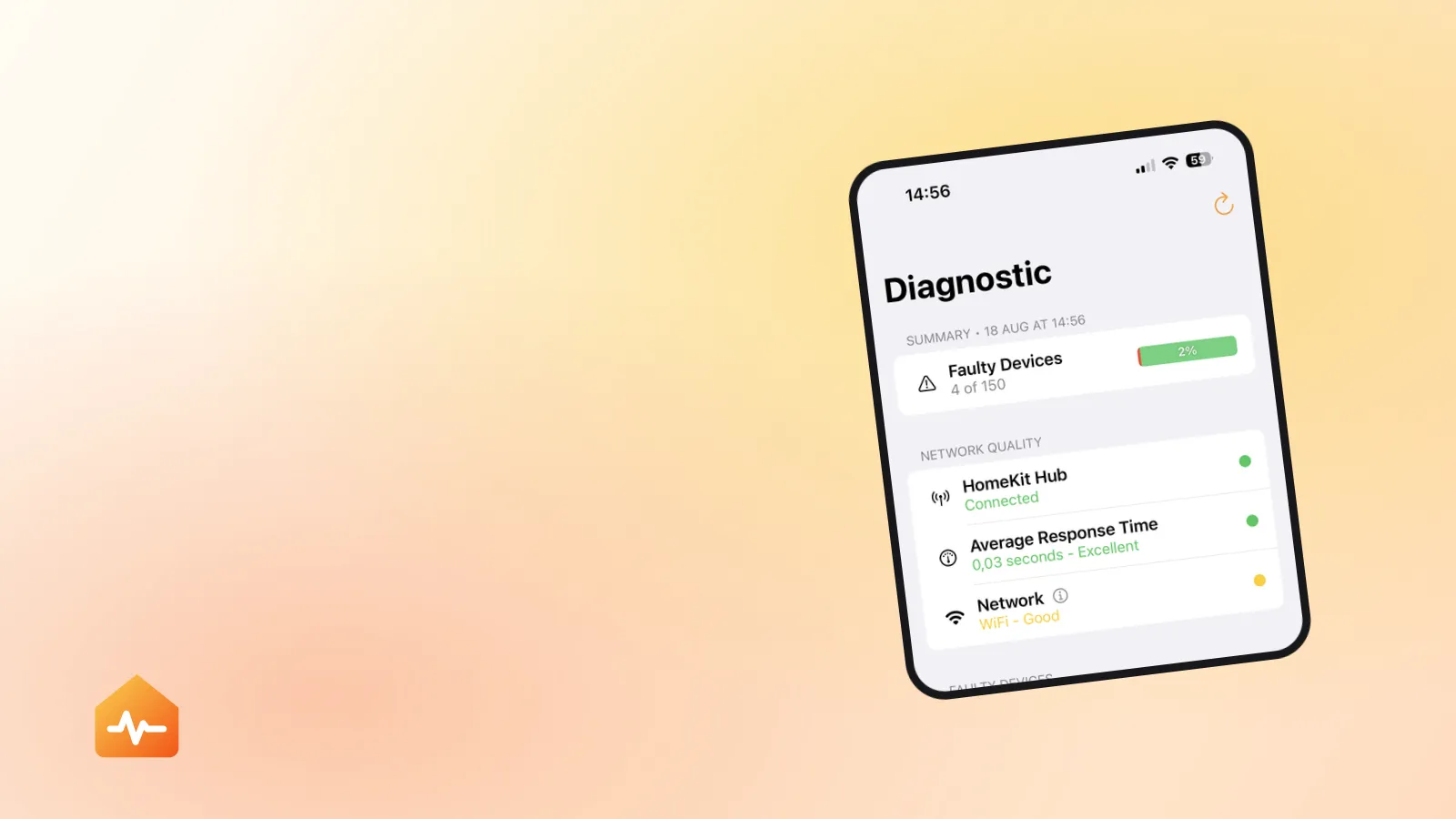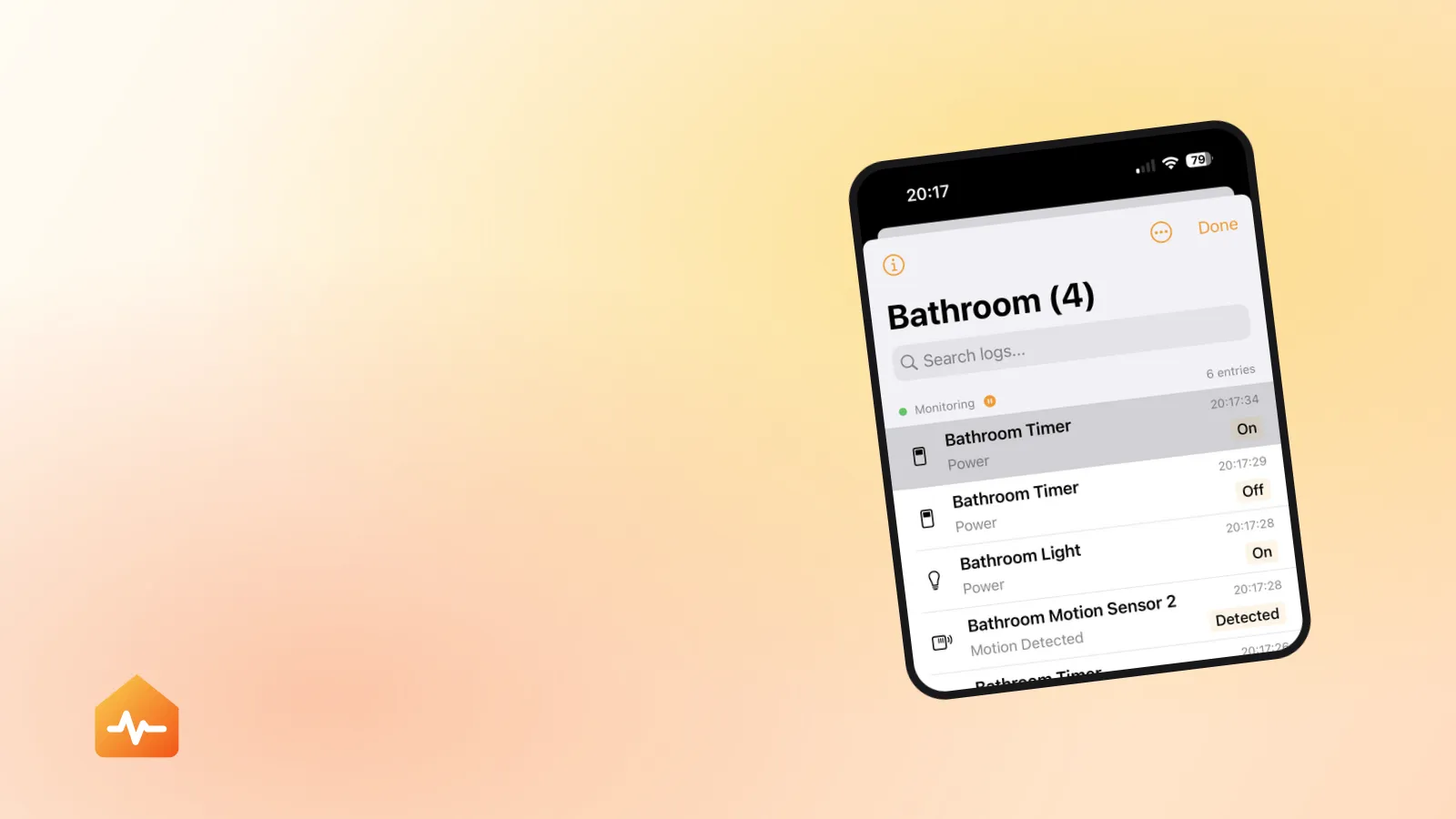
The bathroom sensor was unresponsive again this morning. By the time you opened the Home app to look at it properly, it was fine. It has been doing this for three weeks.
This is a different problem from an accessory that is simply dead, and it needs a different approach — because the one thing you cannot do is test it. Testing is exactly when it works.
Why intermittent failure defeats normal troubleshooting
With an accessory that is constantly unreachable, troubleshooting works the way you expect. You change something, you look, and you know whether it helped.
An accessory that drops out for twenty minutes a day is reachable 98% of the time. So:
- You restart the router. It works. You conclude the router was the problem.
- Two days later it fails again. You re-pair the accessory. It works. You conclude the pairing was stale.
- Four days later it fails again.
Nothing you did was wrong, and none of it was evidence. Each fix was followed by a period of normal operation that would have happened regardless. This is the trap, and the way out of it is to stop testing hypotheses one at a time and start collecting the pattern.
Read the pattern first
| When it drops | What it points at |
|---|---|
| Alone, and it runs on batteries | The battery, or a Thread parent that went away |
| Alone, mains-powered on Wi-Fi | Signal strength, band steering, or IP address churn |
| With other accessories of the same brand | Their shared bridge |
| With everything, at roughly the same time each day | A scheduled router reboot, or DHCP lease expiry |
| Mostly in the evening | Congestion and interference on 2.4 GHz |
| Only while you are away from home | The home hub, not the accessory |
| Recovers on its own within a few minutes | Roaming between access points, or re-attaching to a Thread parent |
| Stays down until you power-cycle it | A failed association, or firmware that has wedged |
If the answer is “only while I am away”, stop here. The accessories are not failing at all — your iPhone simply cannot reach them, which is what a home hub that is not responding looks like from outside the house.
Batteries: the cause people check last
A battery-powered accessory near the end of its charge does not fail cleanly. It has enough energy to wake up, report its state and go back to sleep, but not enough to answer reliably when something asks it a question. The result is an accessory that is present some of the time and absent the rest — which reads as a network problem and is not one.
Three things make this harder to spot than it should be:
- Coin cells lie about their remaining life. A CR2032 holds a fairly flat voltage for most of its life and then drops away quickly. A reported 40% can be a week from unusable, and the percentage you see is the accessory’s own estimate rather than a measurement you can trust.
- Cold cuts capacity. A contact sensor on a garage door or an outdoor motion sensor loses a meaningful share of its usable charge in winter. An accessory that was fine in September and flaky in January has very likely not developed a network fault.
- Not every accessory reports a battery level at all, and the Home app only warns below its own threshold — so an accessory can be well into the failing range without anything appearing on screen.
If the flaky accessory takes batteries, replace them before you investigate anything else. It is the cheapest test available and it resolves a surprising share of “random” HomeKit failures — and why HomeKit low battery warnings arrive late, or never explains why the percentage on screen is not the reassurance it looks like.
Wi-Fi accessories that come and go
For mains-powered Wi-Fi accessories, intermittent failure is nearly always about the quality of the association rather than the accessory itself.
Signal, not bars. A widely used engineering rule of thumb is that Wi-Fi becomes unreliable below roughly −70 dBm. This is not an Apple figure and no HomeKit accessory will show it to you, but the practical version holds: an accessory two rooms and a brick wall away from the nearest access point is operating at the edge, and the edge is where intermittent failure lives. Moving the access point three metres often does more than any setting change.
Roaming in a mesh. In an Eero, Orbi, Deco or UniFi setup, an accessory sitting between two nodes can hand back and forth between them. Each handover is a brief gap. Most devices tolerate that; cheap smart plugs frequently do not.
Band steering. A router that keeps nudging a 2.4 GHz-only accessory towards a band it cannot use produces repeated association failures. Apple recommends one network name across all bands, so the fix is usually in how aggressively the router steers rather than in splitting the network — the 2.4 GHz versus 5 GHz question sets out what genuinely needs which.
Address churn. If the accessory gets a new IP address every time its DHCP lease expires, and something on your network cached the old one, you get a dropout that resolves itself and then returns days later.
Interference on 2.4 GHz. The band is shared with microwave ovens, Bluetooth, older cordless phones, baby monitors and poorly shielded USB 3 enclosures. An accessory that fails while dinner is cooking is not a coincidence, and it is the most common reason for an evening-only pattern.
If all of this started after you replaced your router, the cause is probably a specific setting rather than physics — what a new router actually breaks in HomeKit covers those in order.
Thread accessories that come and go
Thread behaves differently enough that the same symptom has different causes.
Mains-powered Thread accessories generally act as routers in the mesh: they stay awake and carry traffic for their neighbours. Battery-powered ones act as sleepy end devices — the radio is off most of the time, they wake periodically to collect anything queued for them, and they depend on a parent device to hold that queue.
Two consequences matter for intermittent failure.
Losing a parent looks like a broken sensor. When the device a battery accessory was attached to disappears — a smart plug unplugged for the winter, a lamp switched off at the wall — its children must find a new parent and re-attach. During that window they are unreachable, and it is not instant.
Unplugging one accessory can destabilise several. This is the non-obvious one. Removing a single mains-powered Thread device can make three unrelated battery sensors unreliable, because they were all relaying through it. People chase three separate faults that have one cause.
Apple’s guidance when Thread accessories misbehave is specific: disconnect them from power for five minutes, reconnect, then allow ten minutes for the Thread network to stabilise. Judging the result before that window is up is how people conclude the fix did not work.
Bridged accessories and shared queues
Anything behind a Hue Bridge, an Aqara hub, a Lutron bridge or a Zigbee gateway shares one path into HomeKit. That path has a finite throughput, and it is the most common reason several accessories from one brand go unreliable together while everything else is fine.
Watch for the pattern where accessories fail in groups by manufacturer rather than by room. That points at the bridge — its own firmware, its own mesh, its own connection to your router — not at the accessories.
Collect evidence instead of trying fixes
This is the part that actually resolves intermittent problems, and it is the part nobody enjoys.
What you need is a record: which accessory became unreachable, at what time, what else was unreachable at that moment, and when it came back. Three or four dropouts with timestamps usually make the cause obvious — dropouts clustered at 3 a.m. mean a scheduled reboot, dropouts clustered at 7 p.m. mean congestion, and a single accessory dropping alone while everything else is stable means the accessory.
Doing this by hand means opening the Home app at the moment of failure, which is precisely the moment you are doing something else. That is the whole difficulty: the Home app shows you one instant and keeps no history at all, so by the time you look, the evidence is gone.
Fixes that tend to hold
In order, because the order is what stops you from re-pairing something that only needed a battery.
-
Replace the batteries in any accessory that takes them, before anything else. Cheap, fast, and the cause more often than its reputation suggests.
-
Deal with the physical layer next. Move the accessory, move the access point, or add a mains-powered Thread accessory near the sensors that keep dropping. Distance and walls are the cause you cannot configure your way around.
-
Update firmware in the manufacturer’s app — for the accessory and for any bridge it sits behind. Thread implementations in particular have improved substantially through firmware.
-
Reduce what shares the path. Fewer accessories per bridge, and large scenes split into smaller ones, both remove the pile-ups that turn a marginal accessory into a failing one.
-
Then, and only then, consider re-pairing. It costs you every scene and automation the accessory belongs to, and it fixes none of the causes above.
When “unreliable” is really “slow”
One last distinction worth making, because it changes the fix entirely.
An accessory that answers in two seconds is not disconnected. It responds every time you tap it, it never shows No Response when you look, and it will still drop out of your morning routine — because a large scene does not wait that long. If your complaint is that an accessory keeps missing scenes rather than that it shows as unreachable, you are looking at latency, not connectivity. Measuring where HomeKit delay comes from is where that trail continues, and a scene that reports “Failed” is the same problem once it has an error message attached.
And if the accessory eventually stops recovering altogether, the problem has changed shape — a constant failure is a much easier thing to diagnose, and what “No Response” actually means is the right starting point for it.