You tap the lamp in the Home app and count to three before anything happens. It always works — that is the frustrating part. Nothing shows “No Response”, nothing needs restarting, and every guide you find is about accessories that have stopped answering entirely.
Slowness is a different problem, and it needs a different first move: measure it before you change anything.
Four things people mean by “HomeKit is slow”
Each row here has a different cause and a different fix. Find yours before reading further — the rest of the article is organised around this table.
| What you observe | Where the delay is |
|---|---|
| First tap slow, next few instant | Finding the accessory and opening a connection to it |
| Every tap slow, every accessory | Your route into the home: the hub, the network, or your iPhone |
| One accessory always slow, others fine | That accessory, or the bridge it sits behind |
| Accessories from one brand slow together | Their shared bridge |
| Slow only when you are away from home | The home hub relay |
| Fine when tapped, but misses scenes | Not slowness in the usual sense — a queue |
The distinction people most often miss is the last one. An accessory that answers reliably in two seconds will still drop out of a morning scene, because the scene does not wait that long. That reads as unreliability and gets treated as a connection fault, which is why it never gets fixed.
Why the first tap costs more than the rest
This is the most common pattern and the least explained.
When your iPhone is on the same network as your accessories, it talks to them directly rather than through Apple’s servers. To do that it first has to find them, which HomeKit does with Bonjour — Apple’s implementation of mDNS, the multicast protocol that lets devices announce themselves on a local network. Then it opens a secure connection to the accessory.
Both of those cost time, and both are skipped once the connection is live. That is the whole reason your second tap feels instant: it is reusing work the first tap paid for.
So a slow first tap that is followed by fast ones is almost never an accessory problem. It points at discovery on your network — and multicast is exactly the thing home networking equipment handles badly.
- Mesh systems drop or rate-limit multicast between nodes. An accessory on one node and an iPhone on another can take noticeably longer to find each other than two devices on the same node.
- Guest networks and client isolation block it outright, because blocking device-to-device traffic is the entire point of those features.
- Anything that reorders your network stack sits in the path. Apple’s own troubleshooting for accessories that stop responding tells you to check VPN and third-party security software, and a VPN that captures all traffic on the iPhone is a common cause of a first tap that takes several seconds.
Battery-powered accessories add a second reason. A Thread or Bluetooth sensor that spends most of its life asleep cannot answer until it next wakes, so part of what you are timing is the gap until its next check-in. Apple does not publish those intervals and they differ per accessory, but the practical shape is consistent: the first command after a quiet period is slower than the ones that follow.
What being away from home adds
At home, your iPhone reaches accessories directly. Away from home it cannot, so every command is relayed through your home hub instead.
That changes what determines your response time. It is no longer the accessory’s connection — it is the hub’s. A HomePod mini on weak Wi-Fi three rooms from the router will feel slow for every accessory in the house, while the same accessories respond instantly to someone standing in the kitchen.
Two practical consequences:
- Test at home and away, and compare. If only remote control is slow, stop investigating accessories entirely. The trail continues at HomeKit not working away from home.
- Which hub is active matters. Home app → More → Home Settings → Home Hubs & Bridges shows the active hub at the top, and you can turn off Automatic Selection to choose one yourself. If you have both an Apple TV on Ethernet and a HomePod on Wi-Fi, the wired one is the better relay.
If the hub itself is intermittently unavailable rather than merely slow, a home hub that is not responding covers how to confirm that.
Bridges: one path, shared by everything behind it
Anything behind a Philips Hue Bridge, an Aqara hub, a Lutron bridge or a Zigbee gateway does not get its own connection to HomeKit. It shares the bridge’s.
That has a specific and predictable effect on timing. A direct Wi-Fi accessory on a healthy network answers in well under half a second — fast enough that the light appears to change as you tap. The same command to a bulb behind a busy bridge routinely takes several times that, because it queues behind every other command the bridge is handling, then crosses a second network on the other side.
The tell is that accessories go slow in groups by manufacturer rather than by room. Twelve Hue bulbs sluggish while the Eve plug beside them is instant is not a coincidence and not a Wi-Fi problem.
Two things genuinely help here, and neither is a setting:
- Split large scenes. A scene that hits twenty bridged accessories at once creates the pile-up it then suffers from.
- Update the bridge’s firmware, in the manufacturer’s app rather than the Home app. Bridge throughput has improved substantially through firmware on most platforms.
Thread accessories that answer slowly
Thread changes the shape of the delay rather than its size.
Mains-powered Thread accessories stay awake and act as routers, carrying traffic for their neighbours. Battery-powered ones are sleepy end devices: the radio is off most of the time, and they rely on a parent device to hold messages until they wake.
So a slow Thread sensor is usually not a weak sensor. It is a sensor whose parent is far away, or whose parent recently disappeared and which is still re-attaching. Apple’s guidance when Thread accessories misbehave is to disconnect them from power for five minutes, reconnect, then allow ten minutes for the Thread network to stabilise — and judging the result before that window is up is how people conclude nothing helped.
Adding one mains-powered Thread accessory near a cluster of slow battery sensors often does more than any amount of router configuration, because it gives them a closer parent.
Measuring, rather than guessing
Here is the difficulty with everything above: you cannot tell these cases apart by tapping things.
One tap is a single sample, and response time varies enormously between samples. The first tap includes discovery; the fifth does not. An accessory is slower in the evening when the 2.4 GHz band is congested than at 6 a.m. A bridge is slower when it is handling a scene than when it is idle. Tap a light twice, decide it is fine, and you have learned nothing about why your morning routine misses it.
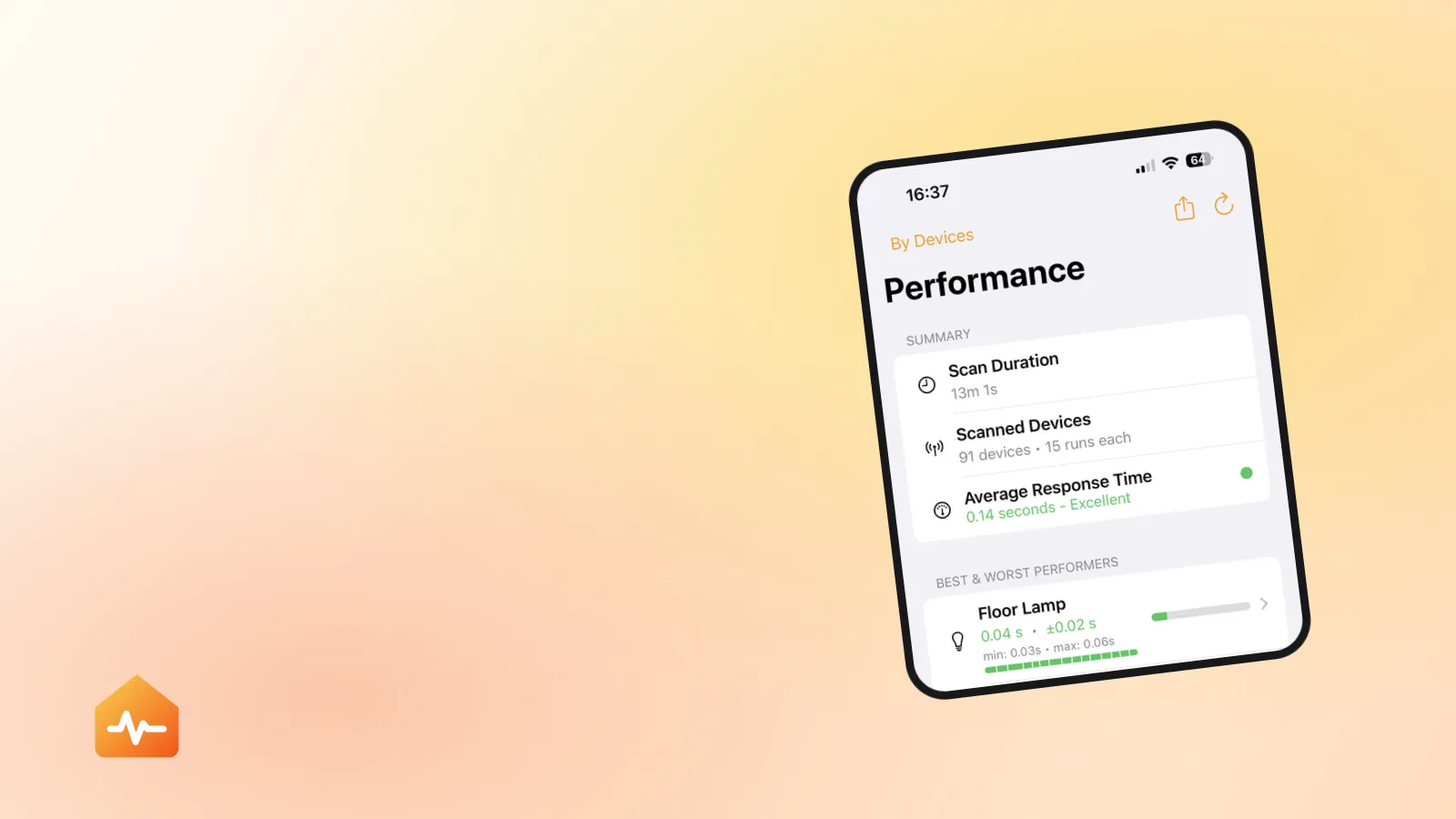
What actually settles it is a set of repeated measurements across every accessory, compared against each other — because the comparison is the diagnosis. If everything in the house sits around 1.5 seconds, the problem is shared and you should be looking at the network or the hub. If eleven accessories are at 0.2 seconds and three are at 2.5, those three have something in common, and it is usually a bridge or a room.
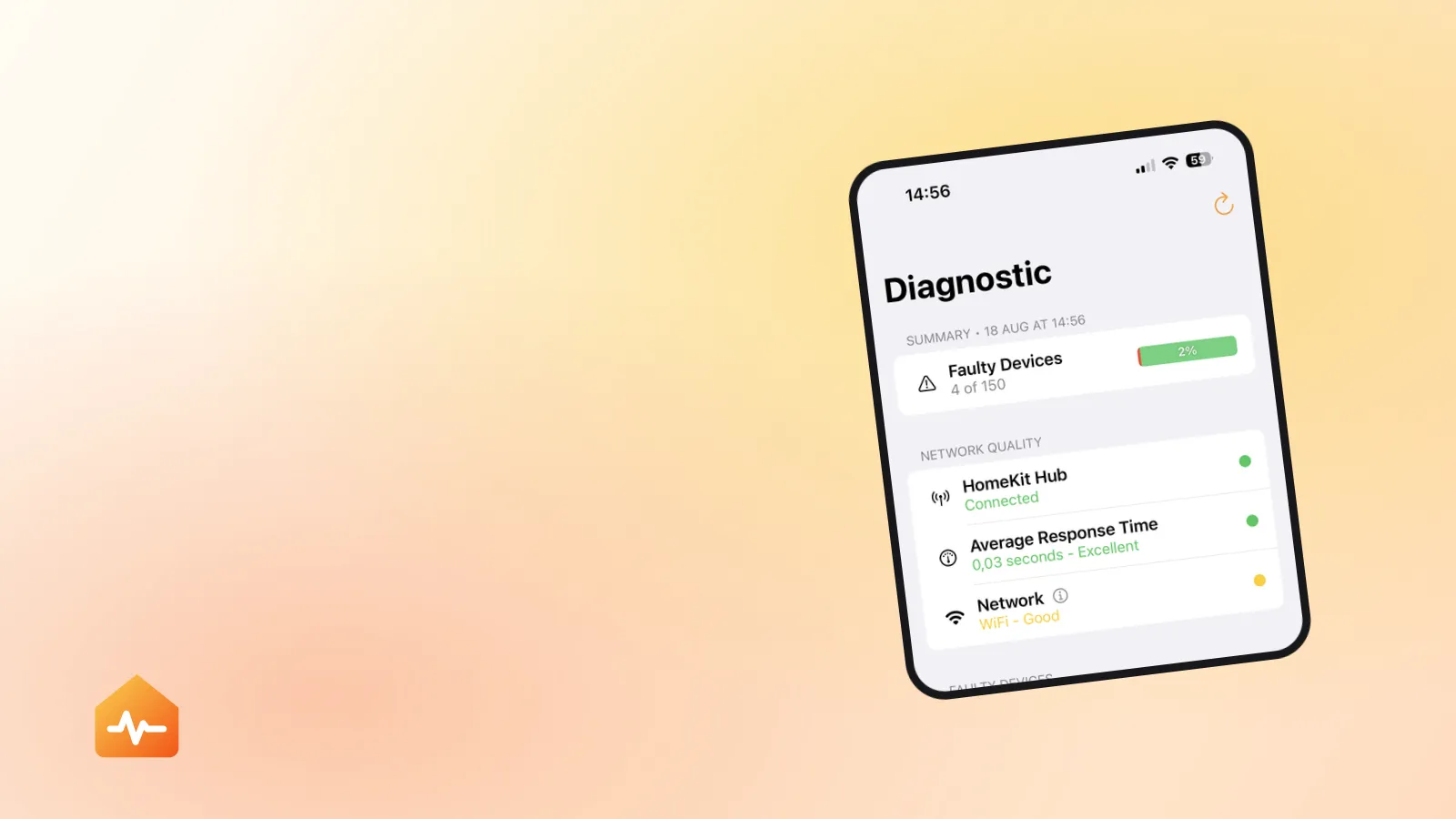
Doing that by hand means timing dozens of taps with a stopwatch, several times, at different hours of the day. The Home app shows you no timings at all.
Fixes, in the order that wastes least time
The order matters because the cheap changes are also the ones most likely to help, and the expensive one at the end fixes almost nothing.
-
Compare a slow accessory at home and away. This single test tells you whether you are debugging accessories or debugging your hub, and it takes a minute. Everything else follows from the answer.
-
Move the home hub, or wire it. If remote control is what feels slow, the hub’s connection is your ceiling. Ethernet on an Apple TV removes the variable entirely.
-
Check that your Wi-Fi is set up the way Apple recommends. One network name across all bands, 20 MHz channel width on 2.4 GHz, WMM enabled, hidden networks and MAC filtering off. These are Apple’s published recommendations for routers used with Apple devices, and the SSID one in particular affects HomeKit more than people expect — what needs 2.4 GHz and what needs 5 GHz explains why splitting the network usually backfires.
-
Take the accessory off a guest or isolated network. Client isolation blocks the multicast that discovery depends on, so every command pays the slow path.
-
Turn off any always-on VPN on your iPhone and test again. Apple lists VPN and third-party security software as a cause of HomeKit connectivity problems, and it is invisible until you look for it.
-
Update firmware on bridges first, then accessories. The bridge carries everything behind it, so it is the highest-leverage update you can make.
-
Replace batteries in anything sluggish that takes them. A tired cell produces slow answers before it produces missing ones.
-
Only then consider re-pairing. It costs you every scene and automation the accessory belongs to, and it does nothing about distance, congestion or a loaded bridge — which is what slowness nearly always is.
When “slow” is really a scene problem
One case deserves separating out, because it gets misdiagnosed constantly.
If your complaint is not that tapping is slow but that a scene keeps leaving one accessory behind, you are not looking at a delay you can feel — you are looking at an accessory that finishes after the scene has stopped caring. It responds every time you test it by hand, because by hand you are patient and the scene is not.
That is why an accessory can be simultaneously “working fine” and permanently missing from your Good Night scene. A scene that reports “Failed” is the same phenomenon with an error message attached, and it is worth reading if scenes are where this shows up for you.
If everything is slow and nothing above applies
Two more possibilities, in the order worth checking.
Slow may be the early form of intermittent. An accessory whose response times are creeping up over weeks is frequently the same accessory that starts showing No Response next month. If your measurements are getting worse rather than staying bad, treat it as an accessory that keeps disconnecting and look at signal strength and batteries rather than at latency.
Or the accessory may not be slow at all — it may be unreachable and recovering. The Home app does not distinguish clearly between “took four seconds” and “failed, retried, succeeded”. If the delay is not merely long but wildly inconsistent, from instant to ten seconds with nothing in between, you are watching failures rather than latency, and what “No Response” actually means is the better starting point.