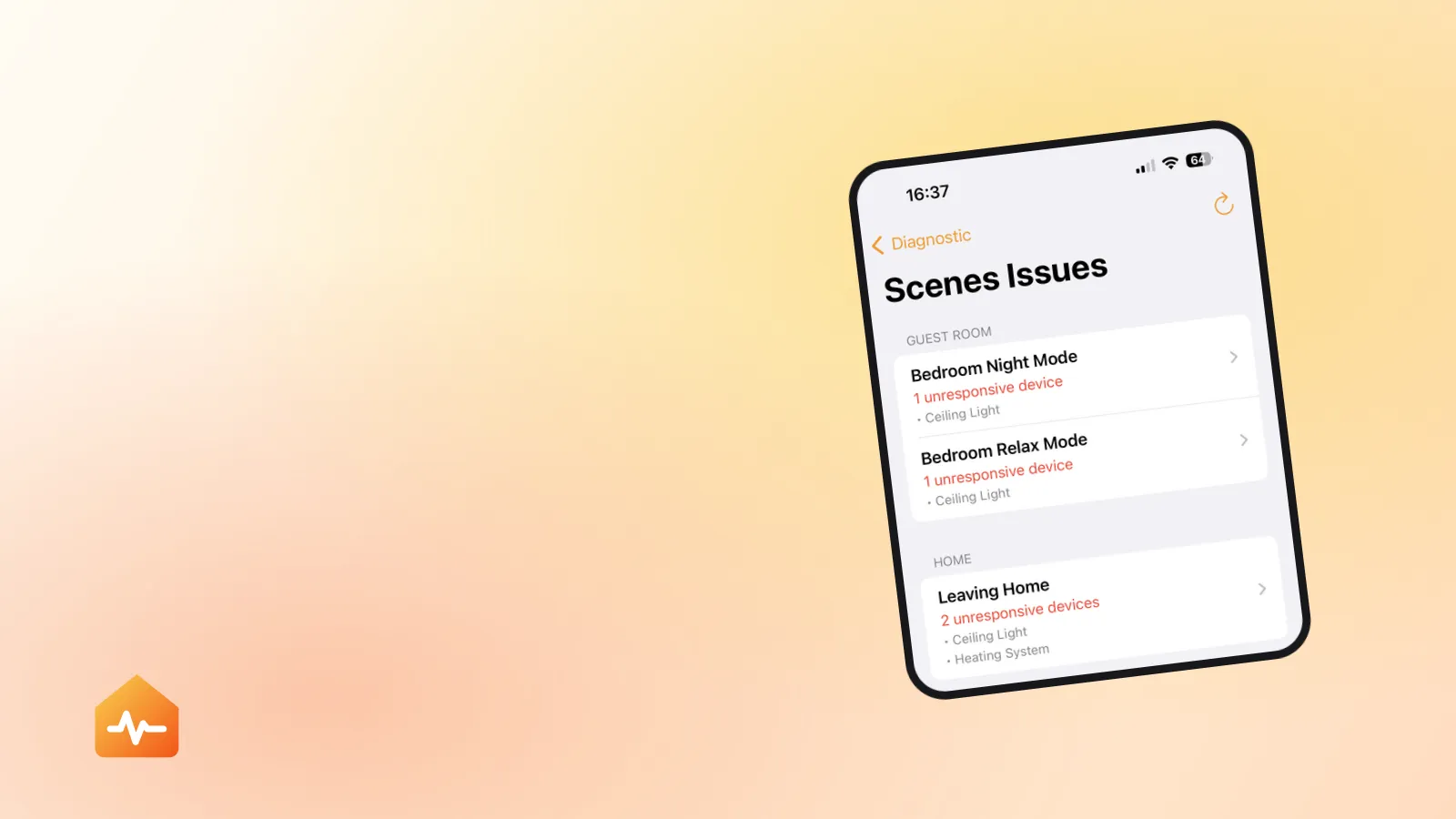
You tap Good Morning, and instead of the house waking up you get one word: Failed. Two lamps came on. The blind did not move. If you asked Siri, she told you the scene failed and offered nothing else.
The Home app will not say which of the twelve actions broke. That is the entire problem — and it is why people end up re-pairing accessories that were working perfectly.
What “Failed” actually reports
A scene is a list of write operations. When you run it, HomeKit dispatches every action and waits for each accessory to acknowledge. If any one of them does not answer in time, the scene is reported as failed.
Three consequences follow, and all three catch people out.
There is no rollback. The actions that succeeded stay applied. Nineteen lights are now on, the twentieth is not, and your home is in a state that matches neither where it started nor where the scene was meant to take it. This matters practically: running a failing scene five times to “see if it sticks” leaves a different mess each time.
One bad action condemns the whole report. A scene with twenty actions and nineteen successes reports exactly the same word as a scene where nothing worked. The label carries no information about scale.
“Failed” and “No Response” are different labels at different levels. “No Response” is the Home app’s verdict on an accessory. “Failed” is its verdict on a scene. A scene can report Failed while every accessory in your grid looks perfectly healthy — which is precisely the case that sends people in circles, and it is covered further down.
Start here: every time, or only sometimes?
This is the fork. Answer it before you change anything, because the two branches have almost nothing in common.
| When it fails | What it points at |
|---|---|
| Every time, one particular scene | A specific action — an offline accessory, or one that cannot execute |
| Every time, every scene | Shared infrastructure — the home hub or the network |
| Sometimes, and more often in your bigger scenes | A timeout — an accessory that is slow, not broken |
| Only when you are away from home | The home hub relaying the command |
| Only when you ask Siri, never from the Home app | Siri’s routing, or a duplicate scene name |
| Only the lock or the garage door, everything else applies | A confirmation prompt, not a fault |
If every scene fails, stop here — the scene is not your problem. Go to diagnosing a home hub that is not responding, because a hub that is down or unreachable breaks scenes, automations and remote access together while leaving manual control working.
Finding the failing action
There are three ways to narrow twelve actions down to one. They are not equally good, and the difference matters.
Watch it run
Stand where you can see the accessories, run the scene, and note what does not change.
This is free and it catches the obvious case — an accessory that is plainly offline. It has one serious blind spot: an accessory that is slow will often complete a second or two after the scene has already been judged. You will watch it turn on, conclude it is fine, and it will still be the reason the scene failed.
Split the scene in half
Build a second scene containing half of the first scene’s actions and run it.
- If the half-scene succeeds, the failing action is in the half you left out.
- If it fails, the culprit is in the half you kept.
Halve again and repeat. Twelve actions takes about four rounds, twenty takes five. Each round means creating or editing a scene in the Home app, adding accessories one screen at a time, running it, and waiting to see the verdict.
It works. It is also fifteen to twenty minutes of tapping for a single answer, and you have to do it again the next time a different scene starts failing.
Run each action on its own and time it
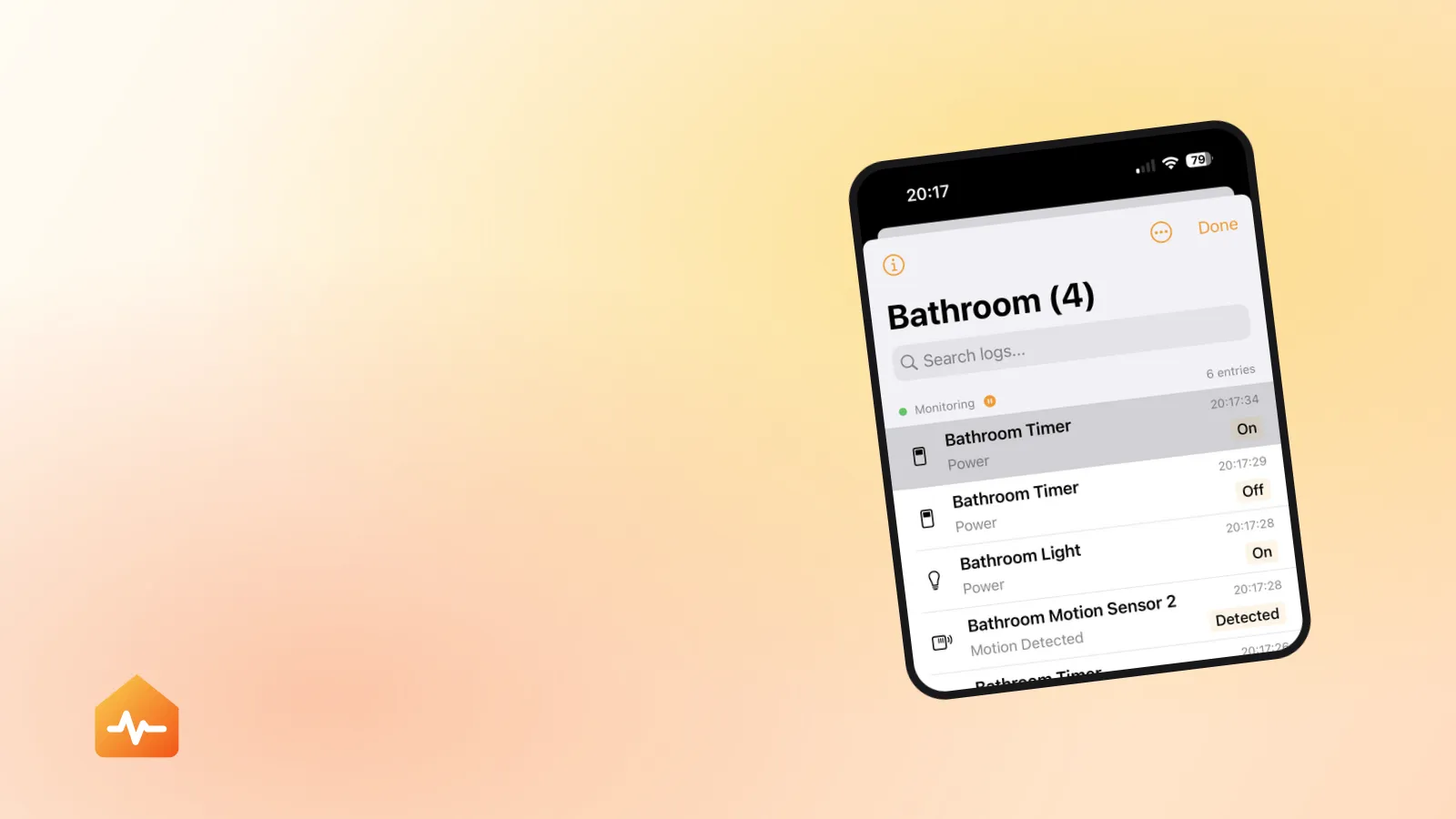
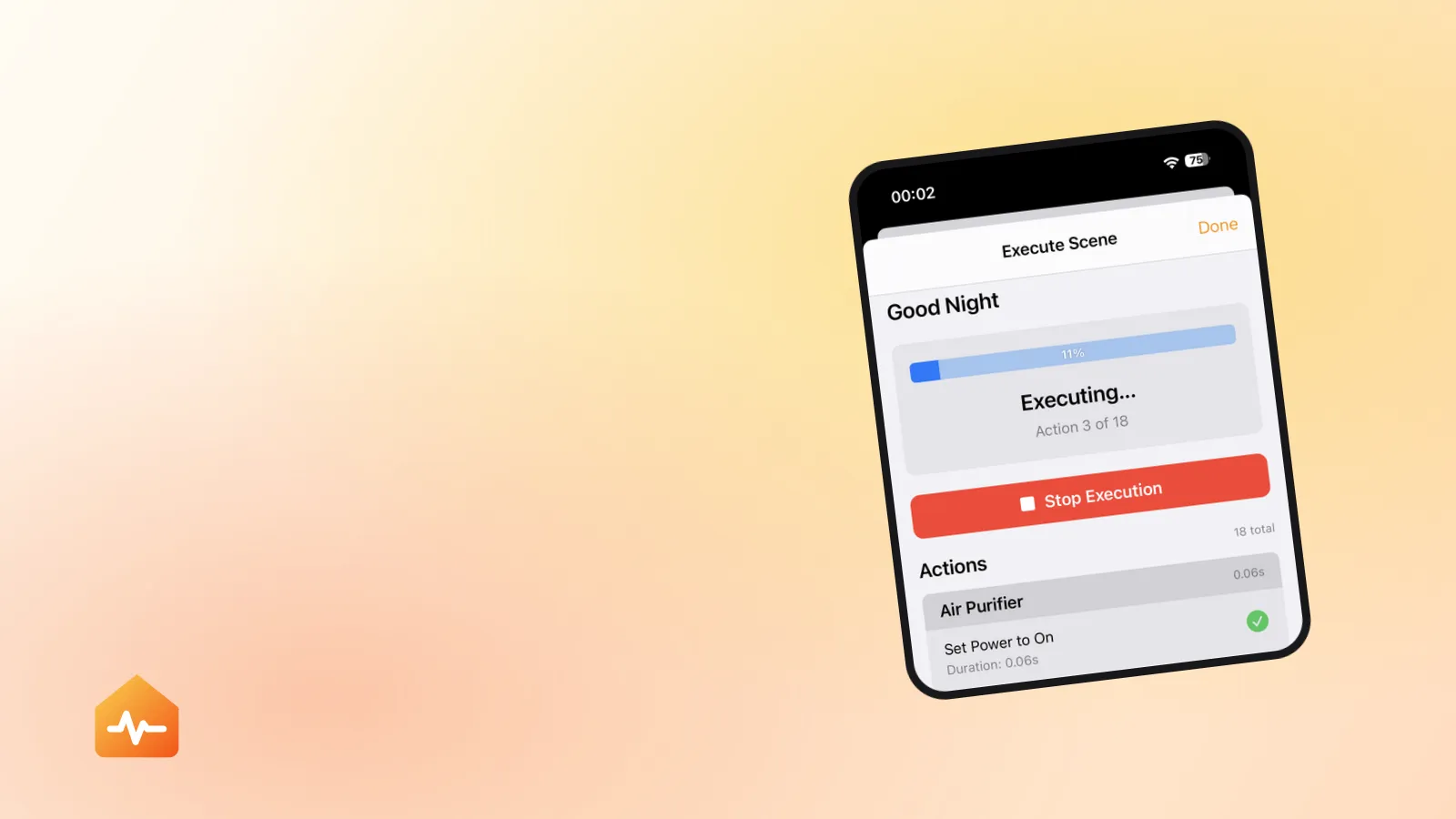
The only method that catches the slow-but-eventually-succeeds case, because it records how long each action took as well as whether it worked. An accessory that answers in 2.4 seconds is a completely different finding from one that never answers at all, and the two need different fixes.
When the scene fails but every accessory looks fine
This is the case that wastes the most time, and it has a mundane cause: the accessory is not broken, it is late.
When a scene fires, every command goes out at once and each accessory has a limited window to answer. Response times vary far more than people expect. A well-placed Wi-Fi bulb answers in well under half a second. An accessory sitting behind a busy bridge, at the edge of a Thread mesh, or on marginal Wi-Fi can take two seconds or more — and two seconds is enough to fall out of a large scene while being completely invisible when you tap the accessory by hand.
The pattern is recognisable once you know it:
- The same accessory fails in your big scenes and works in your small ones.
- It fails more often in the evening, when the network is busy.
- It passes every manual test you throw at it, which makes you doubt the whole diagnosis.
The fix here is not re-pairing. Re-pairing an accessory costs you its place in every scene and automation it belongs to, and it does nothing about latency. What helps is reducing the distance to the nearest router or access point, moving the accessory off an overloaded bridge, or splitting an enormous scene into two smaller ones that run in sequence.
Actions that cannot complete by design
Not every failure is a fault. Two categories are working as intended.
Locks and garage doors. Actions that unlock a door or open a garage door are treated as security-sensitive. Apple does not spell this out on its support pages, but in practice these actions frequently require you to confirm on your iPhone — you get a notification, you unlock the phone, and only then does the door move. Locking and closing generally run without a prompt. The result is a scene that appears to work in one direction and fail in the other, which reads as a bug and is not one.
Accessories that no longer exist. If an accessory was removed from the home, or removed and re-paired, any action still pointing at it refers to nothing. HomeKit treats a re-paired accessory as a new accessory, so “I removed it and added it straight back” does not restore the reference. Nothing in the Home app flags the stale action — the scene keeps looking correct.
That second one is worth checking early if your scene started failing shortly after you replaced a bulb or reset a plug. It is the same failure mode that quietly breaks automations, covered in why HomeKit automations stop working.
When it only fails through Siri
A scene that runs from the Home app but fails when you ask for it out loud is usually not a scene problem at all.
- Siri on a HomePod executes through your home hub. Siri on your iPhone, while you are at home, can often reach accessories directly. Two different paths, so a hub that is struggling shows up in one and not the other.
- Duplicate or near-identical scene names across rooms or homes mean Siri may be running a different scene from the one you mean. If you have both “Good Morning” and “Good Morning Bedroom”, check which one actually ran.
- A scene renamed recently can take a while to propagate to a HomePod.
Why “success” is not always success
One last trap. HomeKit judges whether the write succeeded, not whether the physical thing happened.
A blind that accepts a position command and then stops against an obstruction has, as far as HomeKit is concerned, done its job. A thermostat that accepts a target temperature while in a mode that ignores it reports success too. So a scene can report success while the room is visibly wrong.
If a scene reports success and an accessory still did not do what you wanted, the problem has moved out of HomeKit and into that accessory or its own app.
If it still fails
-
Confirm the scope. One scene failing is an action problem. Every scene failing is a hub or network problem, and no amount of scene editing will fix it.
-
Identify the failing action before changing anything. Splitting the scene or testing actions individually both work. Guessing does not, and editing a scene you have not diagnosed usually adds a second fault.
-
Separate slow from absent. If the action eventually completes when run alone, you have a latency problem — improve the connection, do not re-pair.
-
Check for actions pointing at removed accessories, especially if the failures started after you replaced or reset something.
-
Only then consider re-pairing, and write down every scene and automation the accessory belongs to first, because you will be rebuilding all of them.
If the same accessory keeps turning up as the failing action across several scenes, the scene has stopped being the interesting part of the problem. At that point you are troubleshooting the accessory itself, which is a different question with a different order of fixes — start with what “No Response” really means and work from there.