You open the Home app to turn on a light, and there it is under the accessory name: No Response. The bulb is clearly powered — you can see it glowing from the previous scene — but Apple Home insists it is unreachable.
That mismatch is the whole problem. “No Response” describes a communication failure, not a hardware failure, and it does not tell you which link in the chain broke. This guide covers what the message actually means, how to work out which layer failed, and the order to fix things in so you do not create new problems while chasing the old one.
What “No Response” actually means
When you open an accessory in the Home app, your iPhone tries to read its current state — is the light on, what is the lock’s status, what temperature is the sensor reporting. That read goes out over your local network, either directly to the accessory or through a bridge or home hub.
If the reply does not arrive within HomeKit’s timeout, the Home app marks the accessory No Response and caches that result. Three things follow from this that trip people up constantly:
- The accessory can be perfectly healthy. A smart plug that has lost its Wi-Fi association still has power and still works when you press its physical button. HomeKit just cannot talk to it.
- The label lags reality. An accessory that recovered thirty seconds ago may still read “No Response” until something forces a refresh.
- The fault may not be in the accessory at all. If your home hub is offline and you are away from home, every accessory reads “No Response” while all of them work fine.
Start here: one accessory, or several?
This is the single most useful question, and it is the fork Apple’s own support documentation is built around. Answer it before you touch a single plug.
Open the Home app and look at your whole accessory list, not just the one you noticed.
| What you see | What it points at |
|---|---|
| One accessory failing | That accessory: power, Wi-Fi association, firmware, battery, or distance |
| Several accessories, all the same brand | That brand’s bridge or hub — the Hue Bridge, the Aqara hub, the Eve app’s Thread border router |
| Several accessories, different brands | Shared infrastructure: your home hub, your router, or your iPhone’s connection |
| Everything, only when you are away | Your home hub — you have lost remote access |
| Everything, only on one iPhone | That iPhone: iCloud Keychain, network, or a VPN |
The last two are worth dwelling on because they get misdiagnosed the most. If accessories work at home and fail when you leave, nothing is wrong with your accessories — your home hub is not responding, and every remote command has nowhere to route through. That case has its own checklist in HomeKit not working away from home.
If one accessory is failing
Work through these in order. The order matters: each step is cheaper to undo than the one after it.
-
Check it in the manufacturer’s app. Open the Hue app, the Aqara app, whatever came with the accessory. If it responds there, the accessory and its network connection are fine, and the break is between the manufacturer’s system and HomeKit — a case with its own set of causes, covered in No Response in Home but working in its own app. If it fails there too, the accessory itself is the problem and the rest of this section applies.
-
Check the battery. For any sensor, lock, or button, this is the most common cause and the least suspected. A cell at 10% often has enough power to report in occasionally but not enough to answer every request — which produces exactly the flickering “sometimes responds” behaviour that feels like a network problem.
-
Power-cycle the accessory. Unplug it, wait ten seconds, plug it back in. For battery accessories, remove the batteries and reinsert them. Then wait a full minute before judging the result — accessories do not rejoin the network instantly.
-
Check for a firmware update in the manufacturer’s app. Firmware that has drifted several versions behind is a genuine cause of HomeKit-specific failures, because the compatibility layer is exactly what the update fixes.
-
Move it, or move a router closer. If the accessory sits at the edge of Wi-Fi range or far from the nearest Thread router, it will fail under load and recover when the house is quiet. Signal problems look exactly like flaky hardware.
If several accessories are failing
When accessories from different manufacturers fail together, stop looking at accessories. Something they all depend on has broken.
-
Check your home hub. Open the Home app, tap the More button, then Home Settings → Home Hubs & Bridges. Your active hub appears at the top. If it says anything other than connected, that is your problem and everything else is a symptom.
-
Confirm your iPhone is on the right network. Accessories are reachable locally only from the same network. A phone that silently joined a guest network, or a 5 GHz-only SSID while your accessories sit on 2.4 GHz, will report everything as unreachable — which band each device actually needs is worth knowing before you change any router settings.
-
Check for a VPN. A VPN profile or third-party security app that routes all traffic off-device will break local accessory discovery. Turn it off and re-check before assuming anything else.
-
Restart the network, in order. Unplug the modem and router, plug them back in, and wait for the network to come up fully. Then unplug your home hubs and any third-party bridges, and plug those back in. Restarting the hub before the router just means the hub rejoins a network that is still broken.
-
Restart your iPhone. Last, because it is the least likely, but it does clear a stuck local networking state.
Thread accessories fail differently
Thread accessories do not each hold their own Wi-Fi connection. They form a mesh, reach the rest of your network through a border router (a HomePod mini, an Apple TV 4K with Ethernet, or a compatible third-party hub), and route traffic through each other.
That changes the troubleshooting entirely:
- A single failing Thread accessory may actually be a routing problem, not an accessory problem. If the accessory it used to route through was unplugged or moved, its path out of the mesh disappeared.
- Mains-powered Thread accessories act as routers; battery-powered ones usually do not. Removing one plugged-in Thread device can strand several battery ones.
- The network takes time to heal. Apple’s guidance is to disconnect third-party Thread accessories from power for five minutes, reconnect them, then wait a further ten minutes for the Thread network to stabilise. Judging the result after two minutes will tell you nothing useful.
Bridge-connected accessories
Accessories from Philips Hue, Aqara, and similar systems reach HomeKit through a bridge. HomeKit talks to the bridge; the bridge talks to the accessories over Zigbee or its own protocol.
So when Hue bulbs show “No Response” but everything else in your home is fine, the bulbs are almost certainly irrelevant. Check the bridge:
- Is it powered, and is its network light showing a normal state?
- Does the manufacturer’s app reach the bulbs? If yes, the bridge-to-accessory link is healthy and the bridge-to-HomeKit link is what broke.
- Has the bridge changed IP address? A bridge given a new address by DHCP after a router restart can take a while to be found again. A DHCP reservation for the bridge prevents this permanently.
The accessory that fails intermittently
Constant failures are easy. The maddening case is the accessory that works nine times out of ten, which is also the case that breaks automations while looking fine whenever you check it.
Intermittent failure almost always means one of four things:
- A battery near the end of its life — enough charge to answer sometimes.
- Marginal signal — works when the network is quiet, fails when it is busy.
- A congested 2.4 GHz band — too many devices, or interference from a neighbour’s network on an overlapping channel.
- An overloaded bridge — some bridges degrade well before their advertised accessory limit.
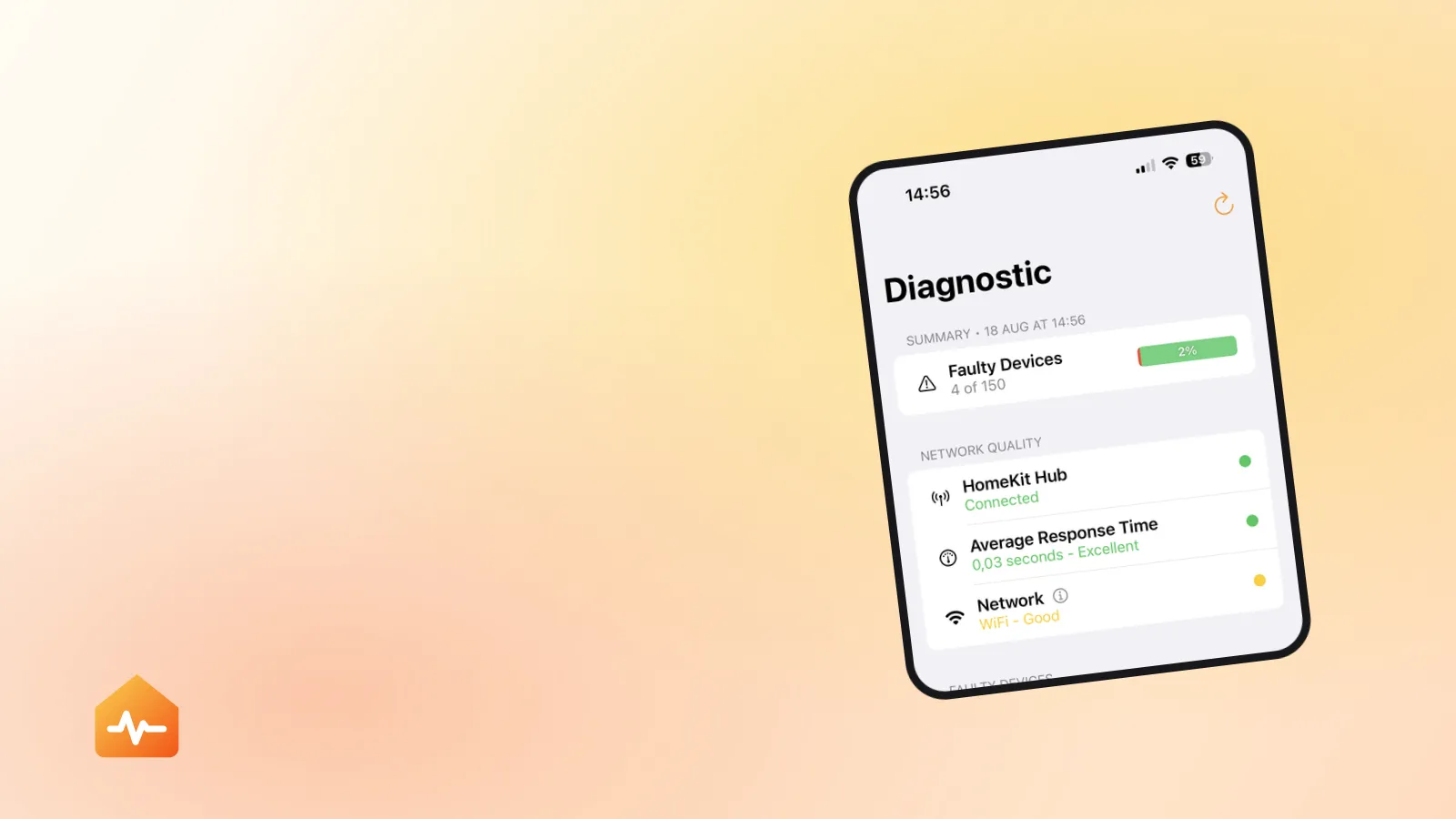
The only way to tell these apart is to measure rather than guess: test the same accessory repeatedly and look at how the response times are distributed. An accessory that answers in 0.05 s nine times and times out once has a signal or congestion problem. One that answers in 1.8 s every time is slow but healthy, and is probably the reason a scene reports “Failed” — the scene gave up before the accessory finished. Measuring where HomeKit delay comes from covers how to take those measurements and what the numbers mean.
When to remove and re-pair
If everything above fails, re-pairing is the reset that works. Do it knowing the cost — resetting an accessory without losing your scenes sets out the record to make first, and the alerts you will hit if you skip a step.
- Note every scene and automation the accessory appears in. You will be rebuilding those by hand.
- In the Home app, select the accessory, scroll to the bottom of its settings, and choose Remove Accessory. If the option is missing, remove it through the manufacturer’s app instead.
- Follow the manufacturer’s reset instructions — this is accessory-specific, and skipping it is why re-pairing often fails.
- Add it back to the Home app, then rebuild its scenes and automations.
If a freshly re-paired accessory starts failing again within days, the accessory is not the problem. Look at signal strength and at the automations that are hammering it — an accessory being polled by several automations at once fails far more often than one that is left alone.
Fixing the right layer
Nearly all of the wasted time in HomeKit troubleshooting comes from working on the wrong layer: power-cycling bulbs when the hub is down, re-pairing accessories when the router changed their IP addresses, replacing hardware that was working the entire time.
The sequence that avoids this is short:
- Force-quit and reopen the Home app first — the label may be stale.
- Count the failures — one accessory, one brand, or everything.
- Check the hub before the accessories, whenever more than one thing is failing.
- Fix from cheapest to most expensive, ending at re-pairing.
- For anything intermittent, measure before you replace.