You deleted that automation weeks ago. The hallway light still comes on at 11 p.m.
Or the other version of the same problem: you have thirty-one automations, you know several of them stopped working at some point, and you have no way of telling which. Nothing in the Home app is marked, greyed out or flagged. They all look fine.
Why the Home app never tells you
Automations do not store accessory names. They store references, and a reference can outlive the thing it points at.
Remove an accessory and every automation that mentioned it — as a trigger, as a condition, or as an action — keeps its reference to something that is no longer there. The Home app does not re-validate automations when you open it, so nothing changes on screen. The automation still lists its trigger, still shows its actions, still reports itself as enabled.
The detail that catches almost everyone: re-pairing an accessory does not restore the reference. HomeKit treats a removed and re-added accessory as a brand-new accessory with a new identity. “I took it out and put it straight back” leaves every automation that used it pointing at nothing, which is why so many people trace a broken routine back to the day they replaced a bulb.
The two categories, and why the difference matters
Before deleting anything, work out which kind you have.
| What is wrong with it | Category | What to do |
|---|---|---|
| Trigger accessory was deleted | Cannot fire | Safe to delete |
| No trigger conditions at all | Cannot fire | Safe to delete |
| No actions to run | Cannot fire | Safe to delete |
| A condition references a deleted accessory | Broken | Repair — do not delete |
| One action targets a deleted accessory | Broken | Repair — the rest still runs |
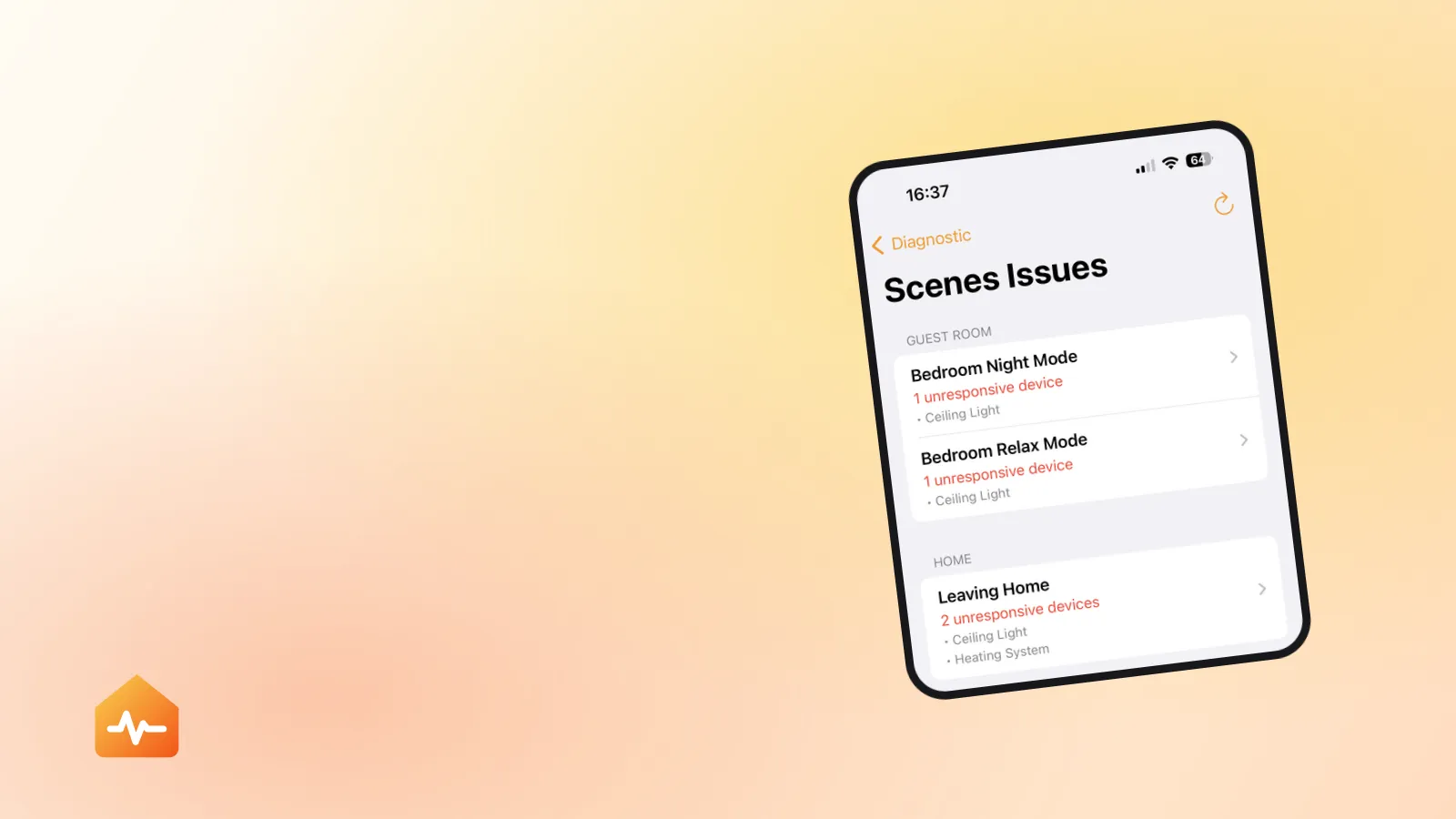
| Scene referenced by the automation is empty | Broken | Fix the scene |
| Duplicate of another automation | Redundant | Delete the one you did not mean to keep |
The principle is worth stating plainly: delete only what cannot fire, and repair what still fires.
An automation with six actions where one points at a removed sensor is still doing five useful things every day. Deleting it because it appeared on a list of problems means rebuilding all six by hand, and people routinely do exactly that — then wonder why the cleanup made their home worse.
Finding them by hand
There is a manual procedure, and it works. It is just long.
Open the Home app, go to the Automation tab, and for each automation:
- Open it and read the trigger. Does the accessory it names still exist in your home?
- Read the conditions. Same question for each one.
- Read every action, one at a time. An action pointing at a removed accessory will usually show an accessory that appears nowhere else in your home, or show nothing useful at all.
- Check that the automation is still enabled, and that Turn Off After It Runs Once is not set on something you meant to repeat.
The awkward part is not the tapping — it is that step 1 requires you to hold your entire accessory inventory in your head while you do it. With thirty automations and sixty accessories, you will be scrolling back and forth between two tabs trying to remember whether “Hallway Sensor 2” was the one you replaced in March. Half an hour is a realistic estimate, and you have to redo it after every accessory you swap.
When an automation refuses to delete
This is the literal complaint, and it usually is not a corrupt automation. It is a synchronisation problem between the device you deleted it on and the home hub that actually runs it.
Automations execute on the home hub — a HomePod, HomePod mini or Apple TV — not on your iPhone. So there are two copies of the truth, and they can disagree.
-
Delete it from one device only, and then leave everything alone. Deleting from an iPhone, then an iPad, then a Mac in quick succession is how conflicting states get created. Give it ten minutes before checking anywhere else.
-
Confirm the hub is online. Home app → More → Home Settings → Home Hubs & Bridges. A deletion cannot propagate to a hub that is unreachable, and a hub that has been offline is the most common reason a deleted automation carries on running. If yours is not connected, that is a bigger problem than the automation — diagnosing a hub that is not responding comes first.
-
Restart the hub and give the home configuration time to reload. Users who have chased this successfully report signing the Apple TV out of iCloud in Settings → Users and Accounts, restarting it, signing back in, and then waiting around ten minutes for the HomeKit configuration to download again. Apple does not document this as a supported fix, so treat it as a last resort rather than a first move.
-
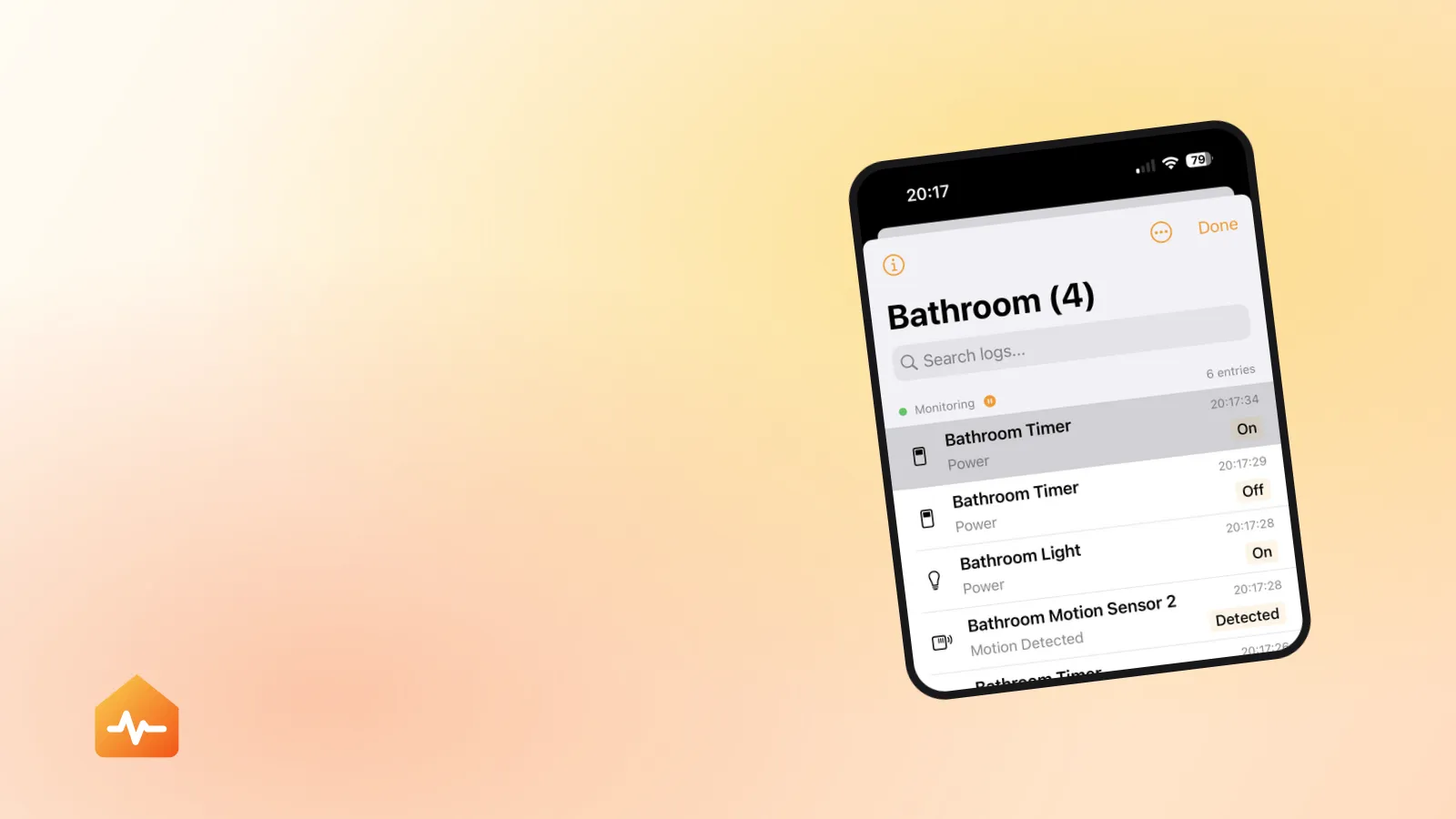
Check the manufacturer’s app for a schedule of its own. Some accessories can store a timer on the accessory itself, entirely outside HomeKit. If a light keeps switching on at 11 p.m. and no HomeKit automation explains it, this is where it is hiding — and no amount of deleting in the Home app will stop it.
Empty scenes, and why they matter more than they should
A scene with no actions is easy to create and easy to forget: you build it, you strip its accessories out while reorganising, and you never delete the shell.
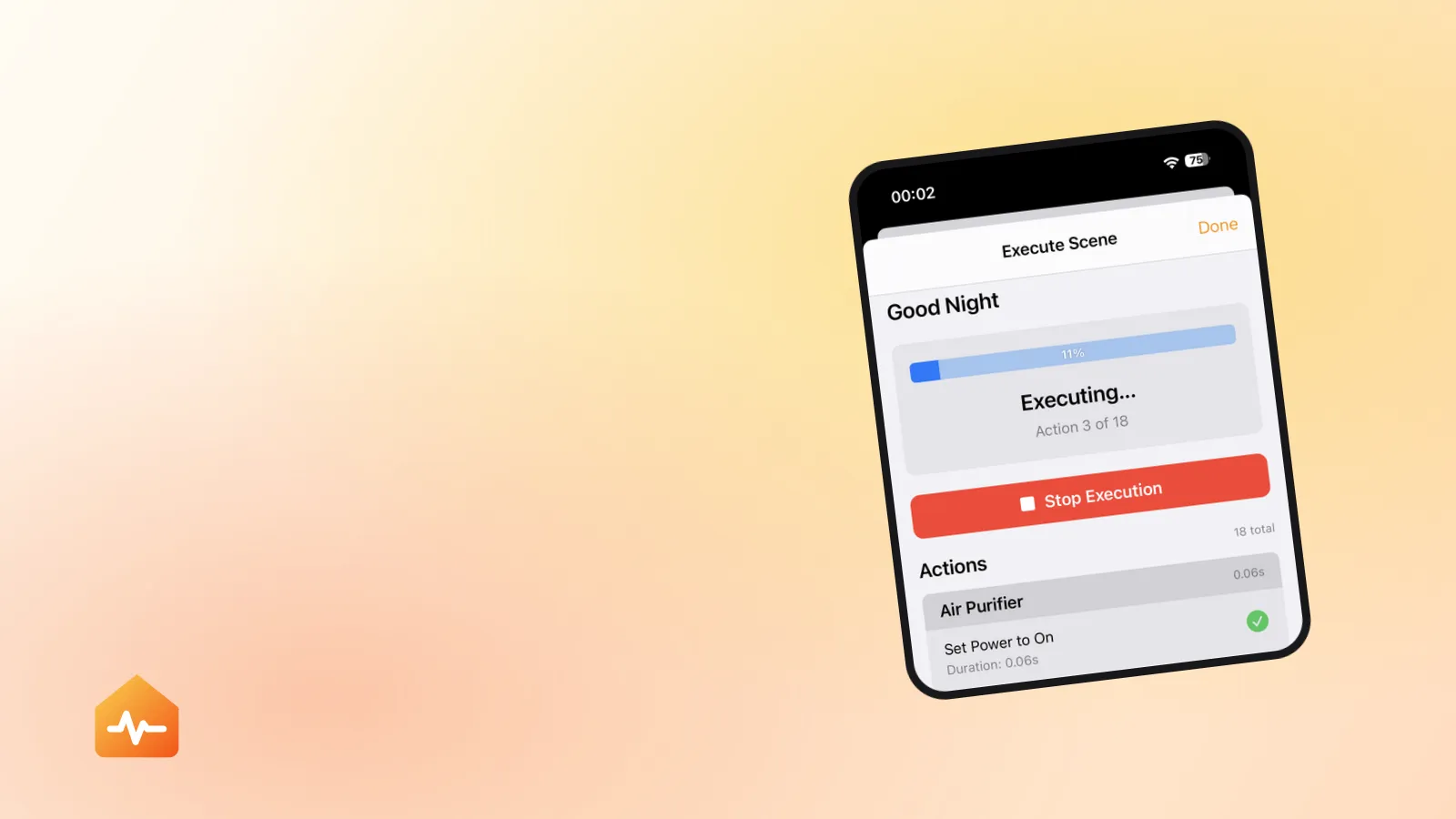
It still appears in the Home app. Siri still recognises its name. Activating it does precisely nothing — which, to whoever just asked for it, is indistinguishable from HomeKit failing. Worse, an automation whose only action is “run scene X” where X is empty will report itself as having run successfully, because from HomeKit’s point of view it did.
These are safe to delete outright. There is no case where an empty scene is doing something useful.
Do the cleanup before the diagnosis, not after
It is tempting to treat this as tidying — worth doing eventually, never urgent. It is worth doing for a more practical reason.
When six of your automations are already dead, you cannot tell which failure is the new one. Every future problem starts with an hour of working out whether this particular routine ever worked, and the noise makes real diagnosis nearly impossible. A home where every automation is known-good is one where a single failure stands out immediately.
That is also the sequence that saves the most time overall: clean up the dead references first, then diagnose what remains. Working the other way round means diagnosing automations that were never going to run.
What to do next
-
Delete what cannot fire. Missing trigger accessory, no trigger, no actions, empty scenes. None of these are doing anything for you.
-
Repair, do not delete, anything that still fires. Open it, replace the action or condition that points at a removed accessory, and leave the rest alone.
-
Remove duplicates deliberately. Two automations doing nearly the same thing at slightly different times feel like one automation behaving erratically, and this is common after rebuilding something that broke.
-
Re-check after every accessory you replace. Swapping a bulb is the single most reliable way to create a new set of dangling references, and it is far cheaper to fix one automation now than to audit thirty in six months.
If your automations are intact and still not running, the problem is not the references — it is somewhere in the trigger, the hub or the accessories themselves, and why HomeKit automations stop working walks through those in order. If they run but do not finish, the failing part is a specific action, which is the subject of a scene that reports “Failed”. And if the same accessory is at the root of several of them, it is worth stepping back to what “No Response” actually means before rebuilding anything.