You walk into the hallway and the lights stay off. You open the Home app and the motion sensor plainly says it detected motion. The automation is there, it is switched on, and nothing happened.
This is two problems wearing one symptom, and the Home app will not tell you which one you have.
The two halves, and how each one fails
Almost every sensor automation problem falls into one of these rows. Working out which one you are in is most of the diagnosis.
| What you observe | Which half broke |
|---|---|
| Test This Automation works, real life does not | The trigger |
| Test This Automation fails or half-completes | The actions |
| It fired, but only some of the lights came on | The actions, and one accessory in particular |
| It fires when you are home and never when you are away | The home hub |
| It fired reliably until you re-paired something | The trigger, now pointing at a deleted accessory |
| It fires the first time and never again that evening | The sensor’s reporting interval, not a fault |
| It never fired, from the day you made it | A condition you set during creation |
The reason this table is worth more than a list of fixes: the two halves have no fixes in common. Rebuilding the automation, which is what most advice suggests, only helps in two of these rows and is a waste of an evening in the rest.
Did the sensor actually detect anything?
Start here, because it is the assumption everything else rests on.
Seeing “Motion Detected” in the Home app when you look is weaker evidence than it appears. It tells you the sensor’s state at the moment you looked, not that it reported a change at the moment you walked past. HomeKit automations trigger on changes, so a sensor that quietly holds a stale state will look perfectly healthy and trigger nothing.
Three things produce that:
-
The reporting interval. Most motion sensors report motion, then refuse to report clear for a fixed period afterwards — often a few minutes. Until it reports clear, it cannot report motion again, so a busy hallway can leave a sensor stuck in the detected state all evening with no fresh change to fire on. The interval is set by the manufacturer and frequently cannot be changed from the Home app, though several brands expose it in their own app.
-
A battery that is nearly done. A sensor near the end of its charge often stays reachable while becoming unreliable about pushing state changes, which is the worst possible combination for diagnosis: the accessory looks fine and the automation silently stops. Why HomeKit low battery warnings arrive late or never covers why the percentage you see does not settle this.
-
The sensor being intermittently unreachable at exactly the wrong moment. An accessory that is fine 98% of the time is unreachable during the other 2%, and the trigger only needs to be missed once for you to notice. If the automation works most days, treat it as an accessory that keeps disconnecting rather than as a broken automation.
Did the home hub see it?
Automations do not run on your iPhone. Apple requires a home hub — a HomePod, HomePod mini or Apple TV — precisely because something has to be at home watching for the trigger while you are not looking.
That produces a very specific and very common pattern: automations that work when you are home and never when you are out. If that is your symptom, the automations are fine and the hub is not, and a home hub that is not responding is where to go next.
Check which hub is active in Home app → More → Home Settings → Home Hubs & Bridges. The active hub is listed at the top, and you can turn off Automatic Selection to pin a specific one — worth doing if you have both an Apple TV on Ethernet and a HomePod on marginal Wi-Fi.
The conditions you set and forgot
This is the quietest cause on the list, because the automation looks completely normal.
When you create an automation in the Home app, the creation flow offers to narrow when it applies, and those choices are easy to make in passing and impossible to see afterwards without opening the automation and reading it carefully.
- A time range. “Only after sunset” is the usual one, set in June and forgotten by November, when sunset has moved two hours and the automation now covers a window you did not intend.
- A people condition. “Only when nobody is home” depends on location sharing being on for the primary device: Settings → [your name] → Find My → Share My Location, with “This Device” selected next to My Location. Turn that off — or replace the phone — and the condition can never be satisfied.
- An accessory condition referencing something that has since been removed. A condition pointing at a deleted accessory cannot evaluate, and the automation cannot fire.
The last one is worth checking specifically if anything in your home has been re-paired recently. HomeKit gives a re-added accessory a new identity, so any automation that referenced the old one keeps its trigger and conditions pointing at nothing while still appearing enabled in the list. Finding and deleting broken automations deals with the ones that can no longer fire at all.
Why “Test This Automation” misleads people
The Home app offers to test an automation, both while you are creating it and afterwards from the Automation tab. It is a useful button and it answers a narrower question than its name suggests.
Testing runs the actions. It turns on the lights, sets the scene, unlocks the thing. It does not simulate the sensor, because there is no way to make a real motion sensor pretend to detect motion. So the test tells you that your actions are valid and your accessories are reachable right now — and nothing whatsoever about whether the trigger works.
That gap is where the frustration lives. The test passes, so the automation must be fine, so people rebuild it identically and get the same result. Meanwhile the actual question — did the sensor report a change at 18:42, and did anything happen afterwards? — has no answer available in the Home app at all, because the Home app keeps no history. It shows you the present moment and nothing else.
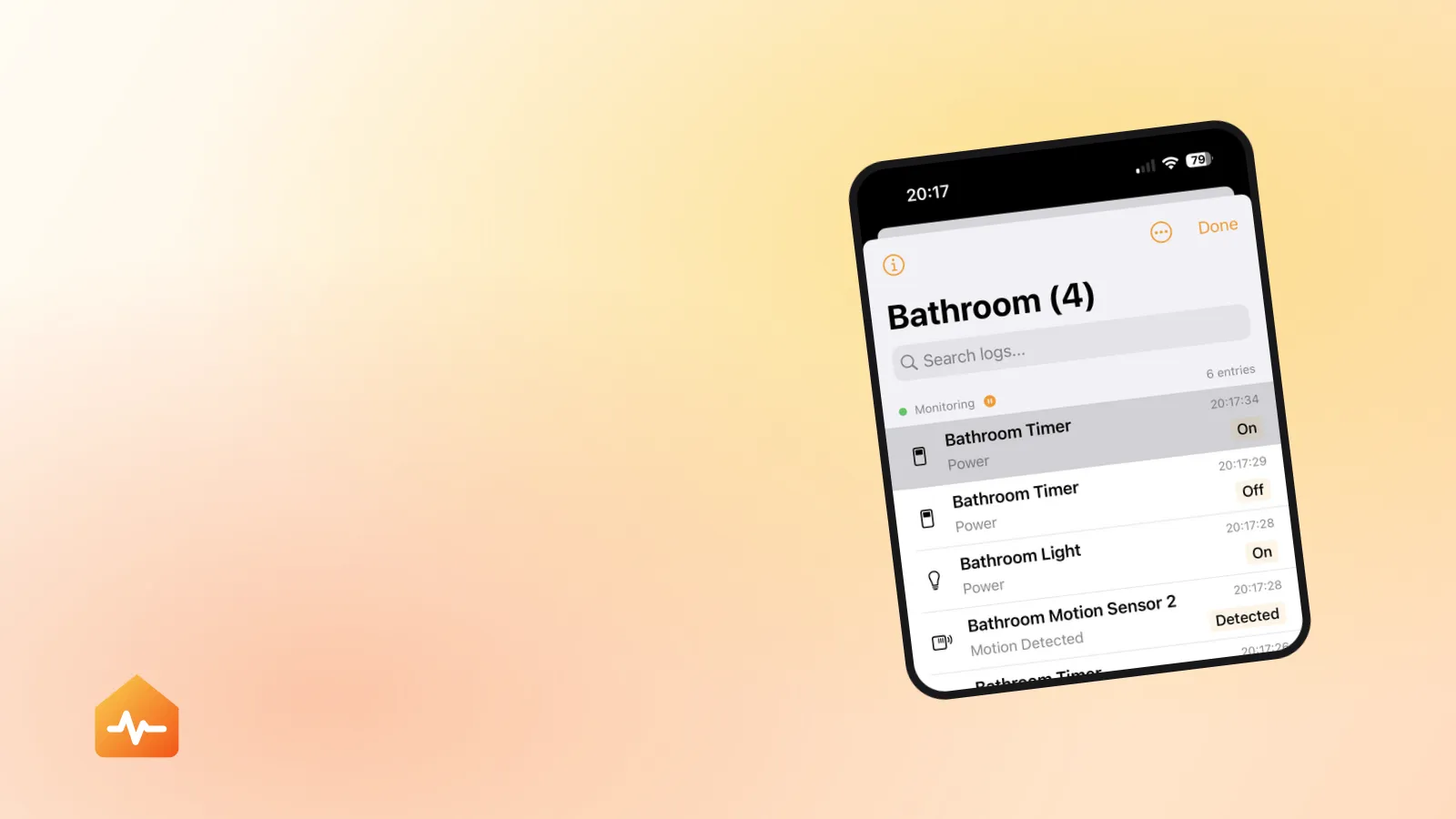
The only reliable way through it is a timestamped record of what your accessories actually did, checked against the moment the automation should have run. Which, by hand, means standing in the hallway with the Home app open, waving at a sensor, and hoping you are looking at the right tile at the right second.
Fixes, in the order that isolates fastest
Each step here rules out one half of the problem, so doing them in order saves you from rebuilding an automation that was never at fault.
-
Test the automation from the Automation tab. If the actions fail, stop — this is an accessory problem, not an automation problem, and what “No Response” actually means is the right guide. If the actions succeed, the trigger half is where the fault is, and steps 2 onwards apply.
-
Confirm the home hub is connected, in Home Settings → Home Hubs & Bridges. Without a working hub nothing triggers, and a hub that has quietly dropped off is the most common single cause.
-
Watch the sensor’s state change in real time. Trigger it deliberately and see whether the tile in the Home app actually changes rather than merely showing the state you expect. No change means the trigger has nothing to fire on.
-
Replace the sensor’s battery if it takes one, before assuming anything more complicated. It is the cheapest test available and it resolves a meaningful share of sensor automations that “just stopped”.
-
Open the automation and read every condition, particularly time ranges and people conditions. Temporarily remove them and see whether it fires.
-
For Thread sensors, confirm you have a Thread border router, and give the mesh time after any change. Apple’s guidance is five minutes disconnected from power, then ten minutes for the Thread network to stabilise.
-
Only then delete and recreate the automation. It is the right fix for exactly one cause — a trigger pointing at an accessory that was re-paired — and it does nothing for the others.
When it fires, but not usefully
Two variants deserve separating out, because they are not failures of triggering at all.
It fires late. The sensor reports, the hub receives it, and the lights come on two seconds after you have already walked through. That is latency rather than a trigger fault, and it is fixed in a completely different place — measuring where HomeKit delay comes from covers how to find which layer is costing you the time.
It fires, but half the lights respond. The trigger worked. One accessory in the action list did not, and the automation moved on without it. This is the same shape as a scene that reports “Failed”, and the fix is to find the specific action that broke rather than to touch the trigger.
If none of it fires and everything looks correct
At that point the automation is very likely referencing something that no longer exists in a way the Home app does not surface. Delete it and build it again from scratch — not edited, rebuilt — choosing A Sensor Detects Something and selecting the sensor fresh from the list.
If the rebuilt automation works and the old one never did, that is your answer, and it is worth checking whether other automations from the same era share the problem. If the rebuilt one also fails, the sensor is not reporting changes to your hub, and the trail continues with the accessory rather than the automation — why automations stop at a step that fails covers the wider version of this problem.