The contact sensor on the back door stopped triggering its automation. You opened the Home app to check, saw the battery sitting at 60%, and went looking for a network problem. Two days later you changed the battery anyway and everything worked.
That sequence is extremely common, and it is not because the Home app is lying to you. It is because the number it shows you was never the kind of measurement people assume it is.
What HomeKit actually knows about your batteries
Apple’s HomeKit framework defines these as distinct pieces of information, which is the root of most of the confusion.
| Signal | What Apple’s documentation says it is | What it is not |
|---|---|---|
| Battery level | “the percentage of total battery capacity remaining” | A measurement — the accessory calculates it |
| Low battery status | “a low battery indicator”, either normal or low | Derived from the percentage |
| Charging state | Whether the accessory is charging | Present on most battery accessories |
The important word is separate. The low battery indicator is not computed from the percentage by iOS or by the Home app — it is its own value, and the accessory decides when to set it. So an accessory can report 45% and flag itself as low, or report 8% and never flag anything, and both are perfectly valid HomeKit behaviour.
That is also why the Home app’s warnings feel inconsistent across brands. It is faithfully reporting each accessory’s own opinion, and the accessories do not agree with each other.
Why the percentage is not a countdown
A percentage implies a measurement. What the accessory actually has is a voltage reading and a rule for turning it into a number, and the rule is only as good as the assumptions behind it.
Coin cells make a flat curve. A CR2032 or CR2450 holds a fairly steady voltage across most of its usable life and then drops away over a comparatively short period. There is very little signal in the middle of the curve to convert into a percentage, so the number sits high for months and then collapses. An accessory reporting 60% is not necessarily 60% of the way through anything.
Cold removes capacity. A contact sensor on a garage door or a motion sensor on an exterior wall has meaningfully less usable charge in January than in September. An accessory that worked all summer and started failing in midwinter has usually not developed a fault.
Load varies enormously. A motion sensor in a busy hallway transmits far more often than one in a spare room, and two identical sensors installed the same day can be months apart in real life.
The estimate is the accessory’s, not Apple’s. Two sensors from different manufacturers with the same cell at the same voltage will frequently show different percentages, because they use different rules.
Why the warning arrives late, or not at all
Three separate reasons, and they compound.
The threshold is the manufacturer’s choice. Because the low battery indicator is its own signal, each accessory decides when to raise it. Some raise it with weeks of life left. Some raise it when the accessory is already failing, which makes the warning a report of what has happened rather than a warning at all.
Plenty of accessories report nothing. Exposing battery information is optional in HomeKit. Inexpensive sensors frequently expose no percentage, no flag, or neither — and an accessory that reports nothing can never warn you about anything.
Bridges filter what gets through. An accessory behind a Hue Bridge, an Aqara hub or a Zigbee gateway only shows HomeKit what the bridge chooses to pass along. The same physical sensor can show a battery level in the manufacturer’s app and none at all in the Home app, which is why people conclude their sensor has no battery reporting when it does.
What a dying battery looks like before it dies
This is the part worth internalising, because it is where the wasted evenings come from. A HomeKit accessory with a failing battery rarely stops cleanly. It degrades, and every stage of the degradation looks like something else.
- It answers more slowly. The accessory is still reachable, still shows no error, and simply takes longer — which reads as a network problem. Where HomeKit delay actually comes from covers how to tell those apart by measurement.
- It becomes intermittent. Enough power to wake, report and sleep; not enough to answer reliably when something asks it a question. This is the classic flickering pattern, and the technique for reading it is in diagnosing intermittent HomeKit faults.
- It stops driving automations while still looking healthy. A sensor that fails to push a state change at the moment it detects something will break its automation without ever showing an error, which sends people to rebuild automations that were never broken. Sensor automations that do not trigger is the fuller version of that trail.
- Finally, it shows No Response. By which point it has usually been causing trouble for weeks.
The through-line is that none of those stages announce themselves as a battery problem, and the one signal that should — the low battery warning — is the least reliable part of the system.
Checking batteries properly
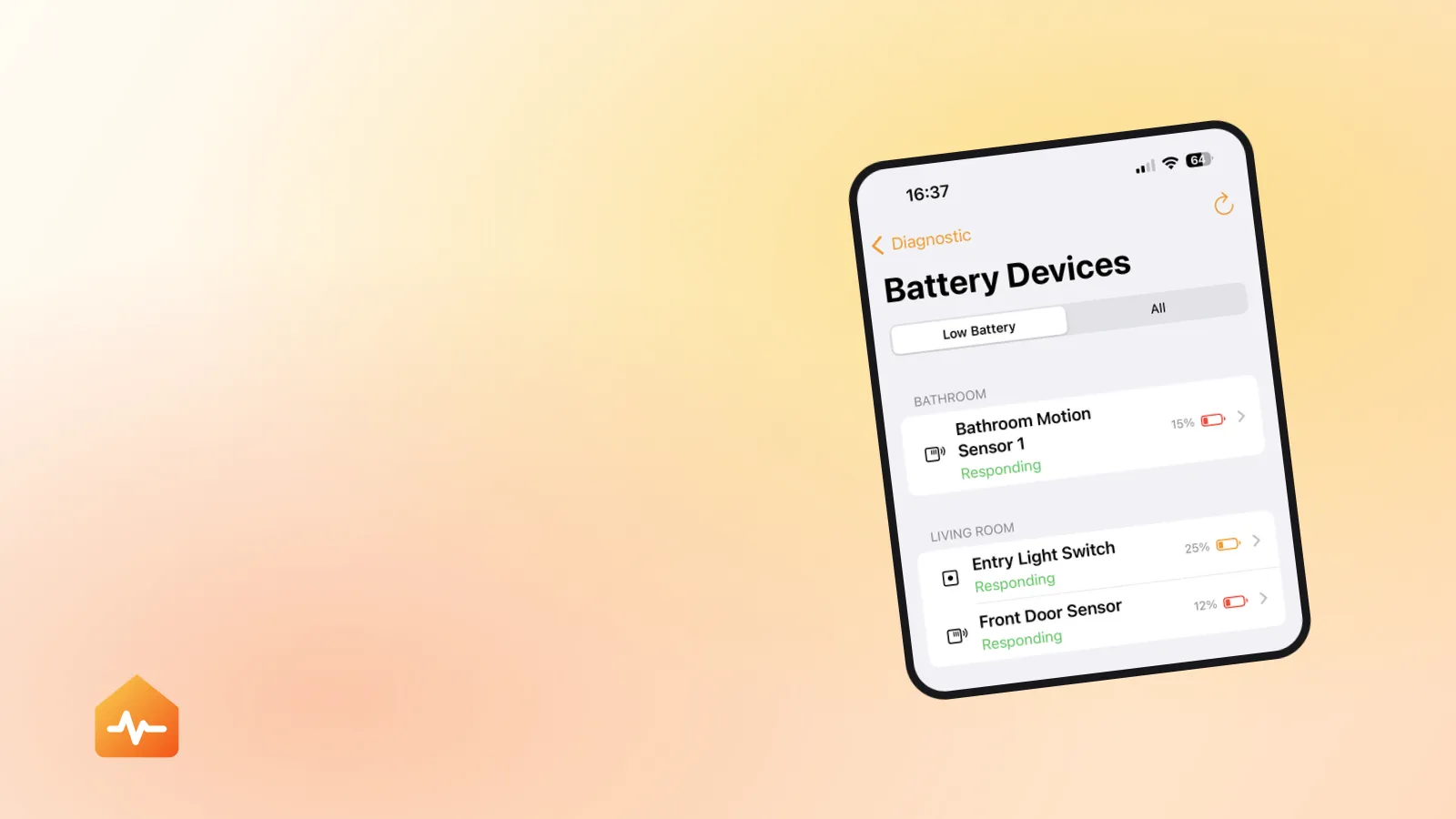
The Home app will show you a battery level on an accessory’s settings screen, when the accessory provides one. What it will not do is show you all of them together, which is the only view that is actually useful.
So checking your home means opening each battery-powered accessory in turn, scrolling to its settings, reading the number, and remembering it well enough to notice next month that it has moved. With eight sensors that is tedious. With twenty-five, spread across five rooms and two bridges, nobody does it — which is why the first sign of a flat battery is almost always a broken automation rather than a warning.
What to do instead of waiting for warnings
The theme here is that the warning is not trustworthy enough to be your plan, so the plan has to be something else.
-
Replace on a schedule for anything that matters. Once a year for coin cells in door sensors, leak sensors and anything a security or safety automation depends on. It costs a few pounds and removes an entire class of confusing failure.
-
Replace before winter for anything cold. Garages, sheds, letterboxes, exterior doors. Cold does not damage the cell, it just makes less of it available, and the failure is seasonal rather than permanent.
-
Treat any battery-powered accessory that has started behaving oddly as a battery suspect first, whatever the percentage says. It is the cheapest test you can run and it costs nothing but a cell if you are wrong.
-
Keep the cells you actually need in stock. CR2032, CR2450, AAA and AA cover most homes. The reason this matters is that a sensor you cannot fix today becomes a sensor you stop trusting, and then a sensor you work around.
-
Note which accessories report nothing, so you know which ones you are flying blind on. Those are the ones that need a schedule most, because they will never warn you.
If a fresh battery did not fix it
Then you have learned something useful for a small cost, and the next question is whether the accessory is failing or its route into HomeKit is.
If the accessory is reachable but unreliable, the causes worth checking next are distance from the nearest access point, a Thread parent that disappeared, or a bridge with more accessories on it than it can comfortably serve. If it is not reachable at all, start at what “No Response” actually means, which sorts a dead accessory from a dead network before you spend anything further.
And if the accessory has genuinely wedged — new battery, still nothing, still nothing after a power cycle — resetting it is a reasonable next step, provided you know what it costs. Resetting an accessory without losing your scenes covers the record to make before you do.